
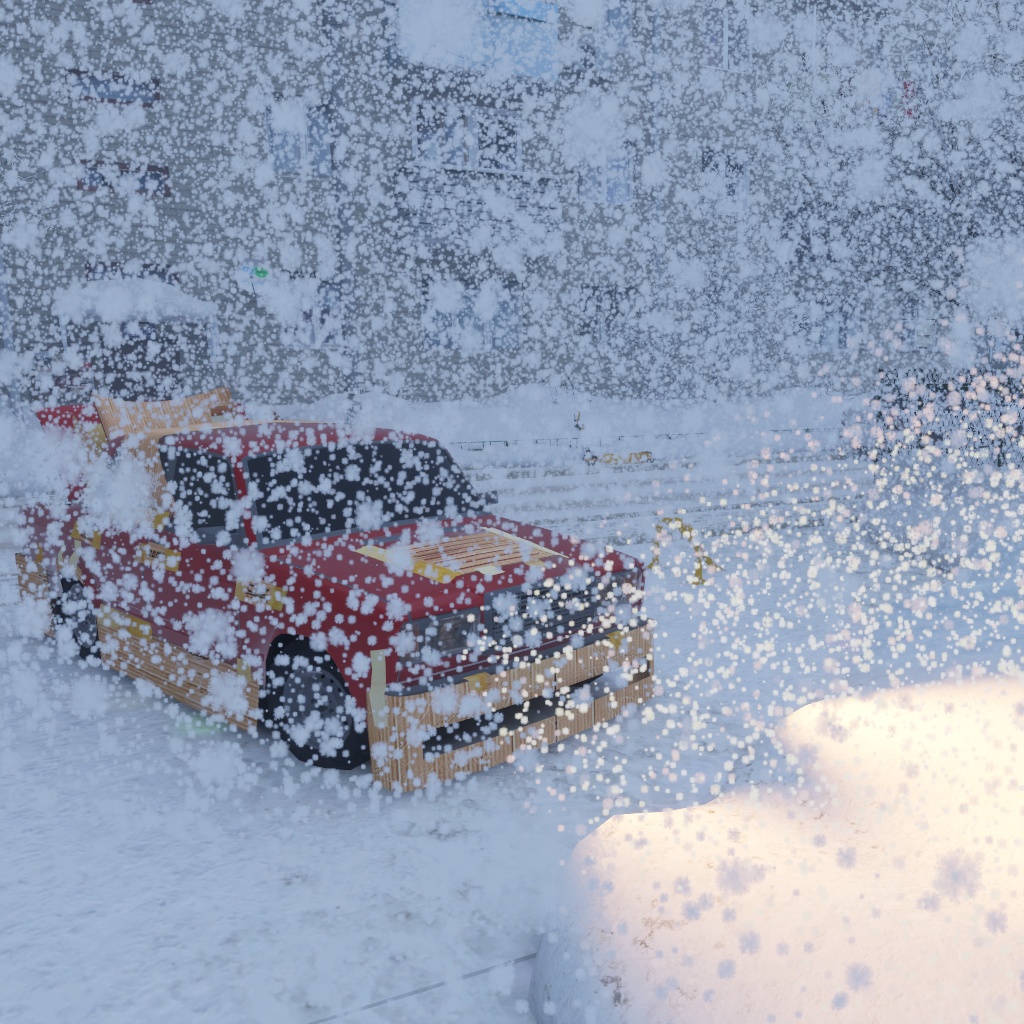
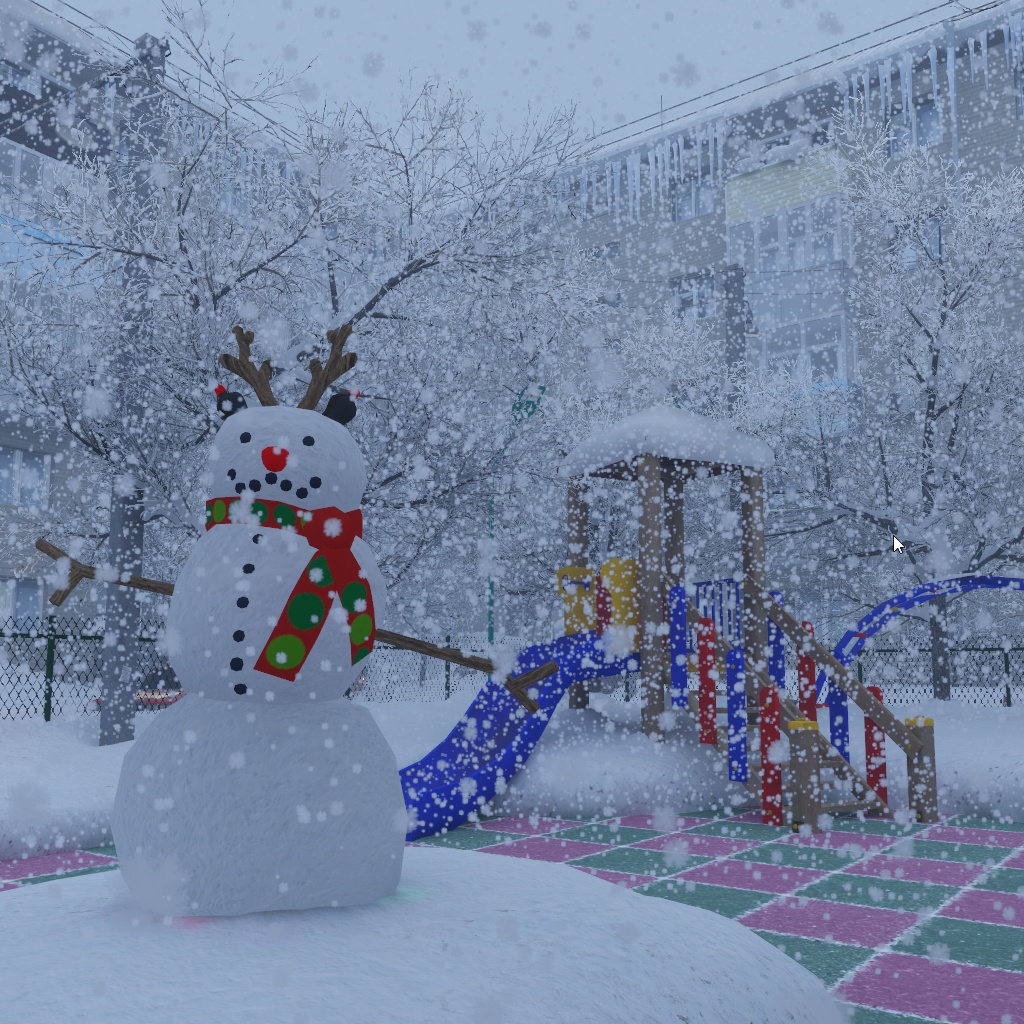
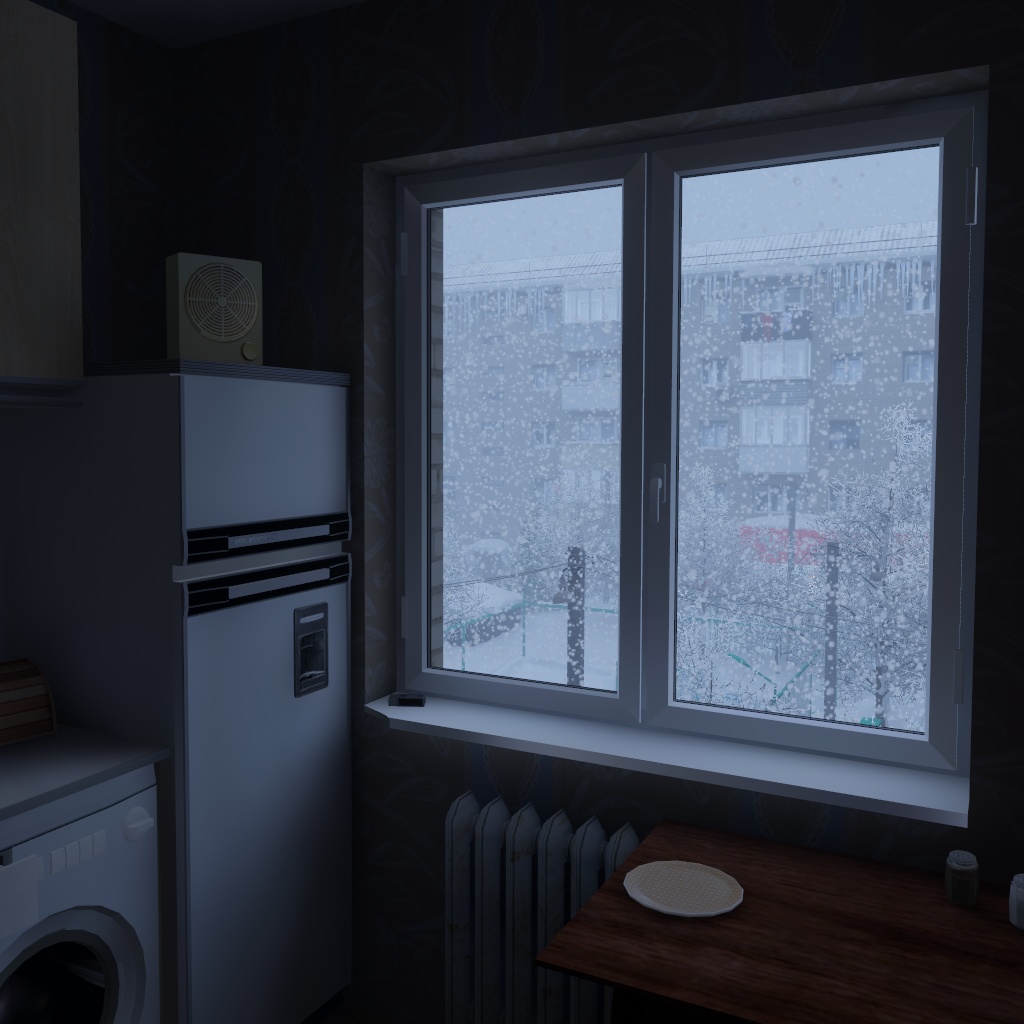
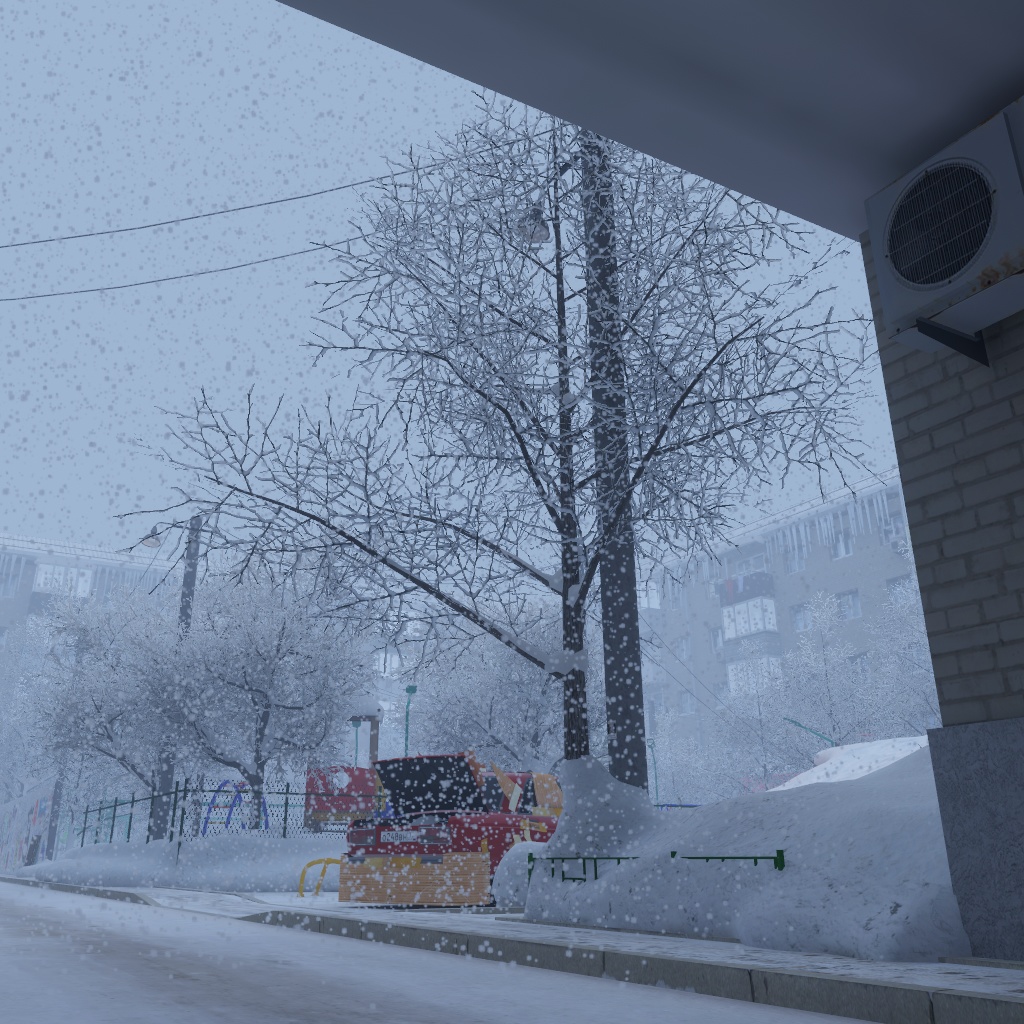
Product Description
This is a GPU Snow Particles shader made for the new GPU Particle Volumes system.
Perfect for calm snowfall or heavy snowstorms.
Renders hundreds of thousands of particles with almost no performance loss.
Works on PC, Quest, Android and iOS.
Features
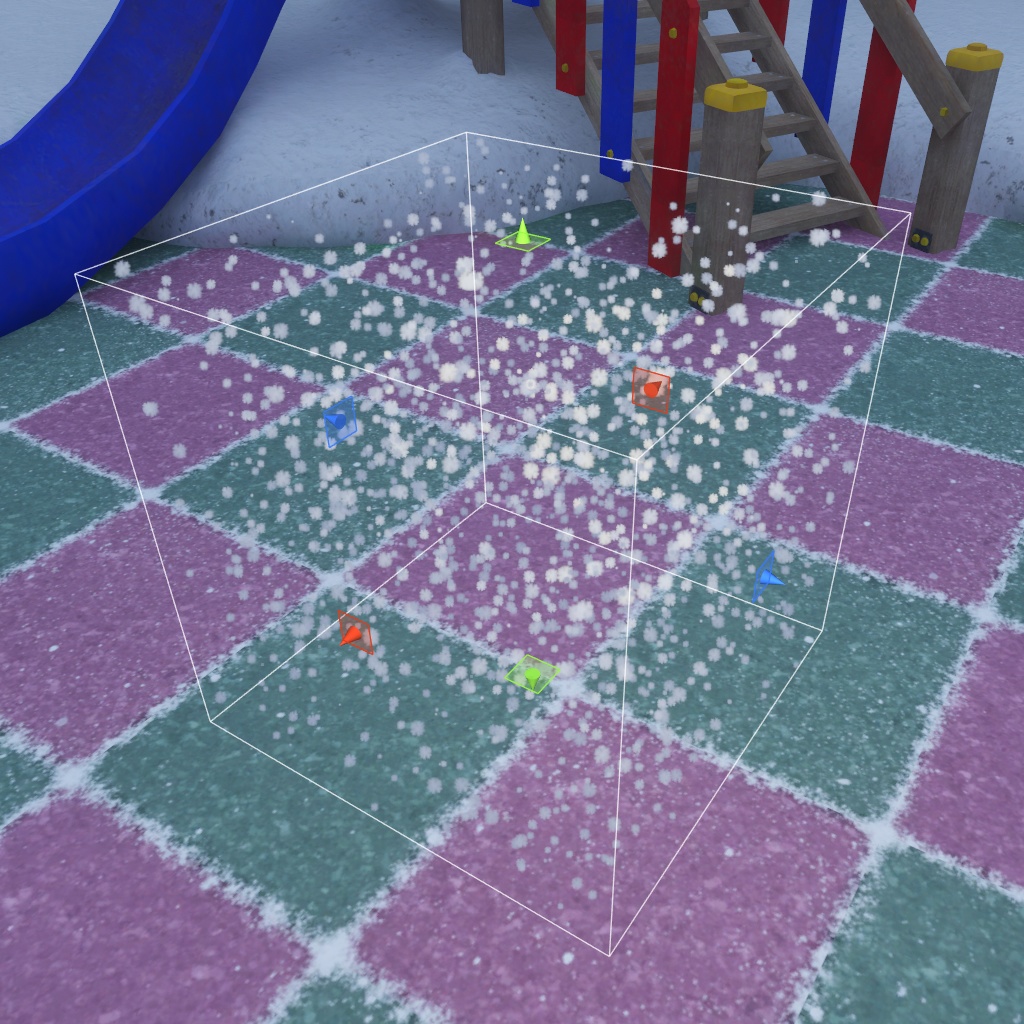
- Particle Volume placement (areas where particles are rendered)
- Volume Excluder placement (areas that hide or mask particles)
- Extremely fast GPU-driven particles, even on low-end devices
- Highly optimized mesh format using minimal vertex attributes
- Includes a ready-to-use particle dust shader
- Can be used in VRChat worlds and avatars (avatar use not recommended but possible)
- Supports VRC Light Volumes for more realistic lighting
Installation
1. First install the GPU Particle Volumes system.
The required asset “GPU Particle Volumes” is no longer included in the archive and must now be installed separately via VCC!
This will make future updates much easier and improve your workflow. Thank you for your understanding!
VRC Creator Companion (recommended for VRChat creators)
1) Open: https://redsim.github.io/vpmlisting/
2) Press "Add to VCC"
3) Confirm the popup
4) In VCC → Manage Project, add "GPU Particle Volumes"
Unity Package Manager (Git URL) - Not recommended for VRChat
1) Window → Package Manager
2) Press [+]
3) Select "Add package from git URL..."
4) Paste: https://github.com/REDSIM/GPUParticleVolumes.git?path=/Packages/red.sim.particlevolumes
5) Press Add
2. Install GPUSnowParticles.unitypackage by dragging it into Unity.
3. All snow particle prefabs are located in:
/Assets/RED_SIM/GPU Particle Volumes/Snow/Prefabs
How to Use
1. Drag a particle prefab into the scene.
2. Select it and check the Particle Volume Manager component.
3. You will see two lists:
- Particle Volume Includers
- Particle Volume Excluders
4. These lists contain empty GameObjects representing particle volumes.
5. When selected, special gizmos appear. Make sure Gizmos are enabled in Scene View.
6. Includers define where particles are rendered.
7. Excluders define where particles are hidden (useful indoors).
8. Auto Update Volumes updates volume transforms at runtime if needed.
9. You can toggle volumes on or off at runtime.
10. To fully disable particles, disable the Mesh Renderer.
11. You can use multiple Particle Volume Managers for different particle types.
12. Particle count depends on a special particle mesh.
Generate it via Tools → GPU Particle Volumes → Simple Particle Mesh Generator,
then assign it to the Mesh Filter of your Particle Volume Manager.
13. Configure visuals through the material.
Troubleshooting
Bug: No volume gizmos in editor after you just imported the asset
Solution: Restart your Unity, looks it's a weird Unity bug
Contact
My Discord server for quick support: https://discord.gg/8Rgw2s65eQ
Additional information and documentation:
https://github.com/REDSIM/GPUParticleVolumes/