
VRChat App Volume Control
Tags
Product Description
Don’t want to pull up your desktop overlay just to turn down the YouTube set blasting in the background? Don’t feel like digging for Spotify’s volume slider? Is the VRChat audio menu too buried mid-session?
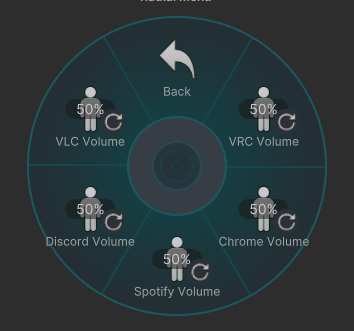
This allows you to control per-application volume directly from inside VRChat using your Expressions menu.
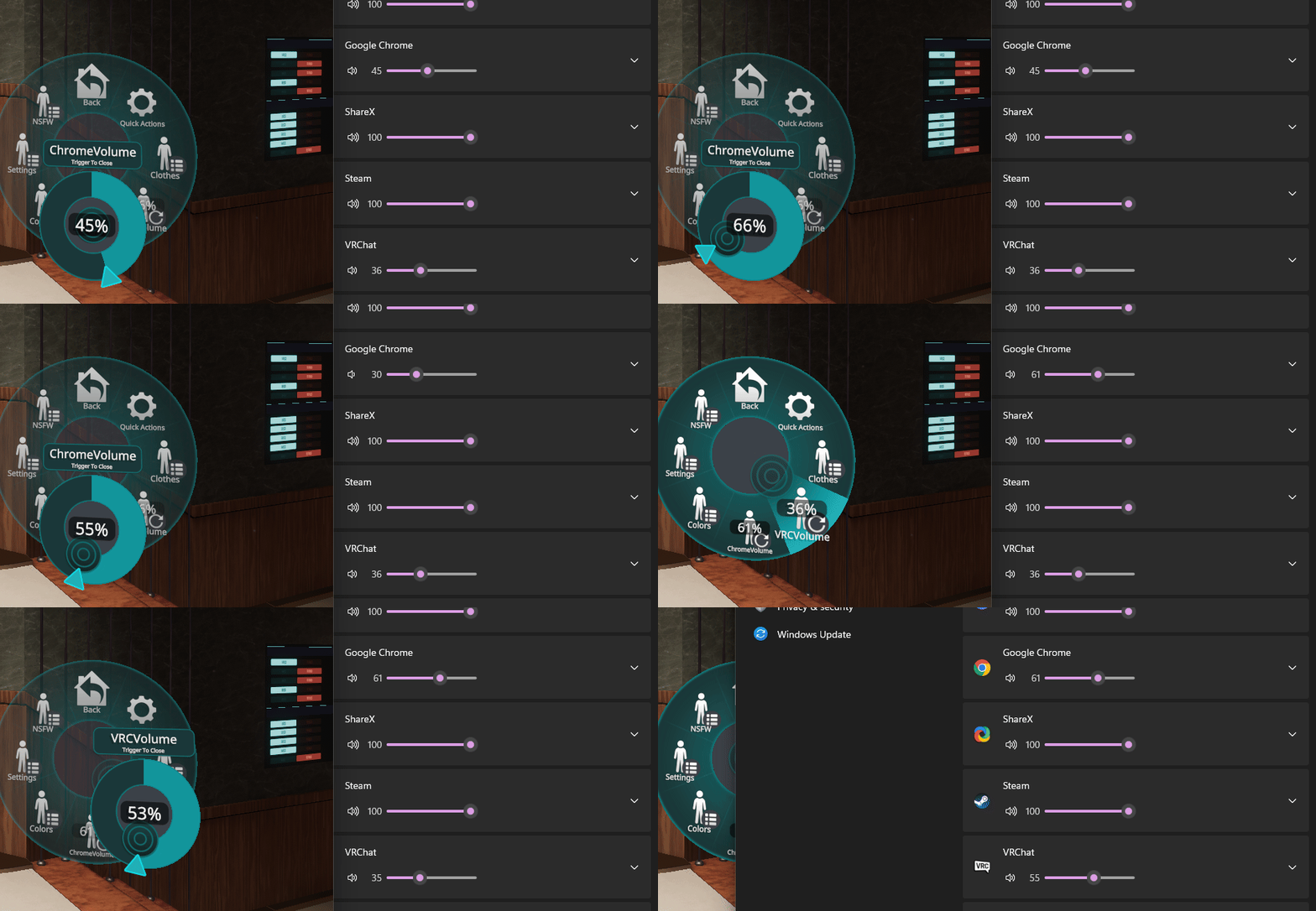
A lightweight Python script listens for specific float parameters sent via VRChat’s OSC system and maps them to Windows processes. When the parameter value changes in-game, the corresponding application's volume updates in real time.
You can map any unused float parameter to any running process (e.g. chrome.exe, vrchat.exe, spotify.exe, etc.). Script can optionally strip VRCFury’s parameter renaming prefix if used on avatar (defaults to on)
PREREQUISITES
- Python 3.x
- python-osc
- pycaw
- comtypes
- Basic familiarity with Unity / avatar parameters / OSC
SETUP / USAGE
1. Enable OSC in VRChat - In VRChat settings, enable OSC so parameter changes are sent locally.
2. Create a float parameter with a unique name
- Create an unused float parameter in your avatar (example: ChromeVolume).
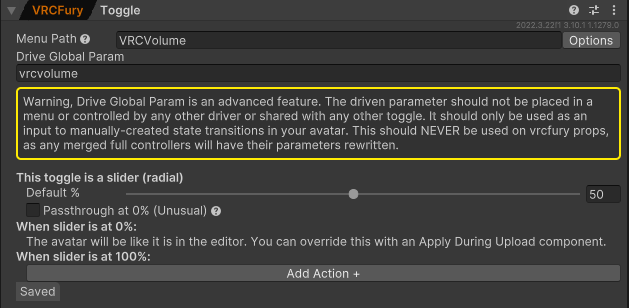
- Add a radial control in your Expressions menu that drives this parameter.
- Recommended: use VRCFury to quickly create the radial control, as shown in the screenshots.
3. Match the parameter name(s) in the script
At the top of the script, edit the PARAM_MAP dictionary to match your avatar parameters to the processes you want to control. Example:
"ChromeVolume": {"process": "chrome.exe"},
- The key must exactly match your avatar’s float parameter name.
- The process value must match the running Windows process name.
- You can add new parameters/apps as you need
4. Run Script - Launch while VRChat is running - When you adjust the radial in-game, the target application's volume will change. The console will display registered apps and volume changes.
NOTES
- The script adjusts the master session volume for the selected process.
- Target applications must already be running for volume changes to apply.
- If multiple instances of a process are running, all matching sessions will be adjusted.
Source code:
https://github.com/kevkush/vrchat-app-volume-control