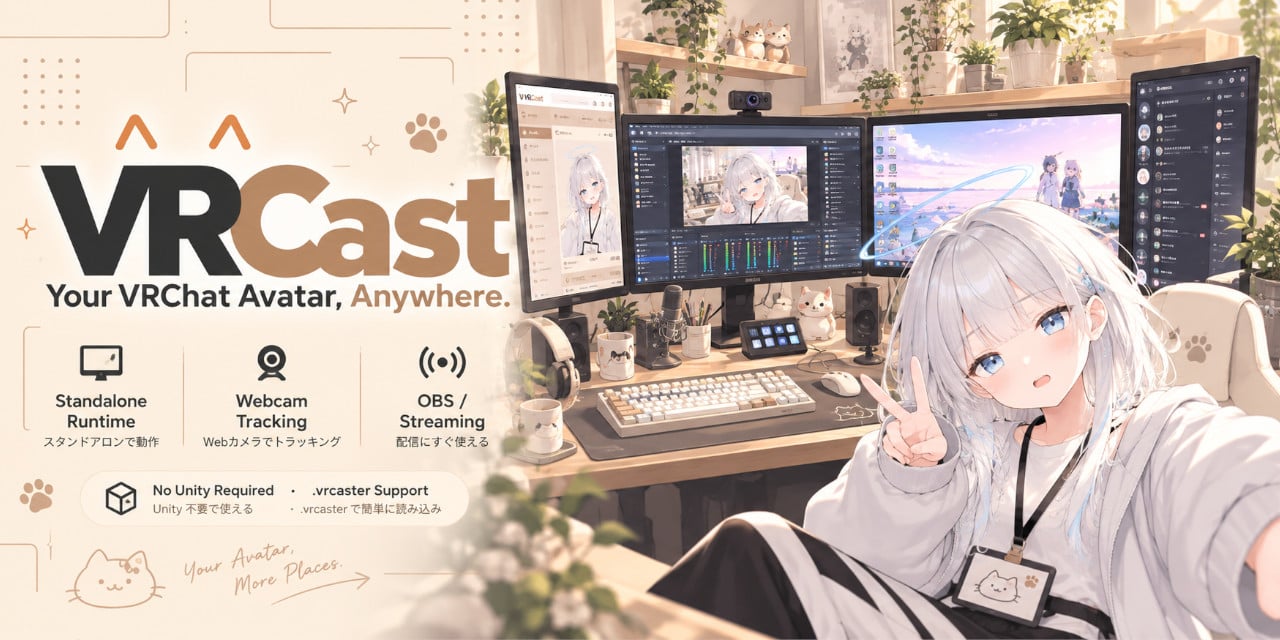
[Free] VRCast - Easily Bring Your VRChat Avatar into OBS
Tags
Product Description
This product contains AI-generated content.
BOOTH(same software):
https://coffin299.booth.pm/items/8933317
OfficialDiscord(Support&Community):
https://discord.gg/vM5RH52HdF
Stream and video-call as your VRChat avatar, without opening Unity.
VRCast is a Windows app that shows your VRChat 3D avatar on its own and sends it to OBS, Discord, Zoom and more.
Export your avatar once to a .vrcaster file, and you no longer need Unity or VCC running.
VRCast is free. If you like it, choosing a supporter (donation) option helps keep development going.
The free and supporter versions are identical.
■ Features
・Transparent background in OBS (Game Capture)
・Keeps your VRChat setup: expressions, default toggles, PhysBones and constraints (your original avatar is never modified)
・A-I-U-E-O lip sync from your microphone, with auto blink
・Webcam tracking: head, blink, mouth, gaze, arms, hands and fingers (MediaPipe bundled, OpenSeeFace supported)
・Virtual camera: pick "VRCast Camera" in Discord, Zoom and more
・Beginner friendly: the Start tab guides you to OBS. Japanese and English UI
・Look adjustments: lighting, avatar brightness, background color, resolution, expressions
■ Three easy steps
1. Add the exporter to your avatar's Unity project and export it to .vrcaster
2. Drag and drop the .vrcaster file onto the VRCast window
3. Add a Game Capture source in OBS and check "Allow Transparency"
Details: https://coffin299.github.io/VRCast/help/
■ Installing the exporter (in your VRChat Unity project)
1. Open the project with your avatar from VCC (VRChat Creator Companion)
2. Double-click VRCast-Converter.unitypackage in the zip (or drag it into Unity) and click "Import"
3. When a "VRCast" menu appears, the exporter is installed
4. Open "VRCast" > "Avatar Exporter", pick your avatar in the scene and click "Export..." to save a .vrcaster file
Note: your original avatar and project assets are never modified. To remove it, delete the Assets/VRCast/Converter folder.
Note: to use the Package Manager instead, use "Add package from git URL..." with this URL (Git required):
https://github.com/coffin299/VRCast.git?path=/Packages/com.vrcast.converter
■ Requirements
・Windows 11
・Export: a Unity 2022.3.22f1 project with your avatar (VCC projects are fine)
・Tracking: a webcam (optional)
・Streaming: OBS Studio or similar
■ Contents
VRCast-x.x.x-win64.zip
・VRCast.exe (the app. Extract the zip and run VRCast.exe in the folder)
・VRCast-Converter.unitypackage (the exporter)
・README.txt / CHANGELOG.txt / LICENSE.txt / NOTICE.txt
■ Notes
・Unofficial tool by an individual developer, not affiliated with VRChat Inc.
・Always follow the terms of use of your avatar, outfits and accessories.
・Built-in pipeline shaders (lilToon, Poiyomi, etc.). PhysBones and constraints are approximated.
・The virtual camera registers a driver once (administrator prompt). Press "Uninstall driver" before moving or deleting the folder.
・SmartScreen or antivirus software may warn on first launch.
・The author is not responsible for any damage caused by using this software.
■ License
Open-source software under the Apache License 2.0. See GitHub for the full license and third-party notices.
https://github.com/coffin299/VRCast
■ Links and support
Website: https://coffin299.github.io/VRCast/
Bug reports and requests: https://github.com/coffin299/VRCast/issues