
IK Adjustable Microphone
Product Description
IK Adjustable Microphone
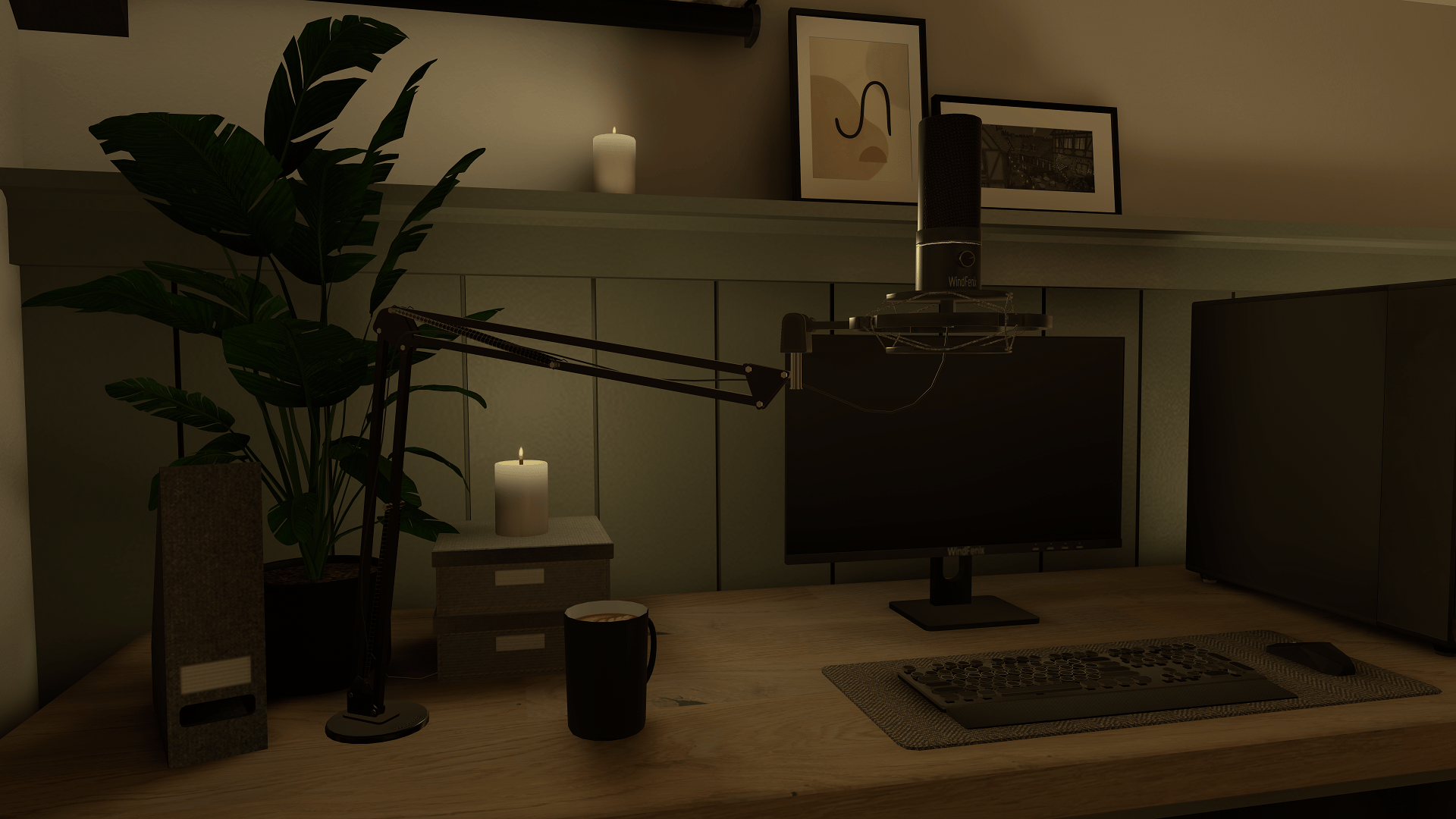
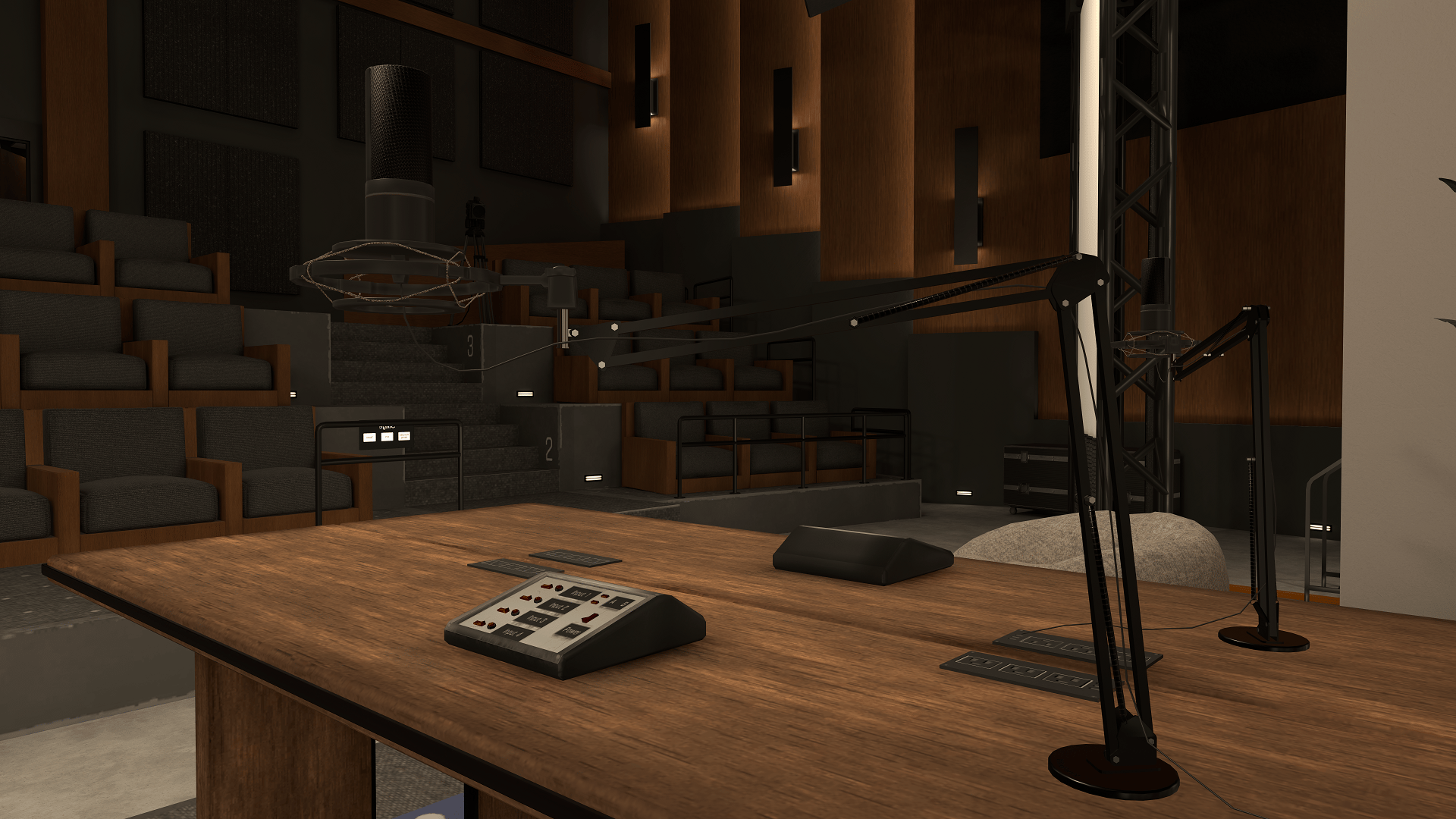
A fully interactive microphone. Players can grab and move it freely while the microphone arm reacts with realistic natural motion. Perfect for your VRChat worlds - such as studios, stages, podcasts, or home office spaces.
Feature List
- 4K PBR textures
- Grabbable microphone with IK reactive arm
- Customizable rotation limits, initial pose, and automatic drop range
- Easy drag-and-drop installation
Example World
Try out this product for yourself in VRChat in Silent Summit by Bombae (https://vrchat.com/home/world/wrld_c5de7ca5-4c00-4351-9103-1b6f4be127cf). The microphone is located on the computer desk upstairs in the bedroom.
Installation
- Download and install the Unity package by double clicking on it with Unity open.
- Drag the microphone prefab located at
Assets\Maxxuss\Microphone\Prefabs\Microphone.prefabinto the hierarchy. - Position, rotate, and scale the microphone from its prefab root as needed. Do not transform any of the objects under the hierarchy of the microphone prefab root except those mentioned under Customize.
Customize
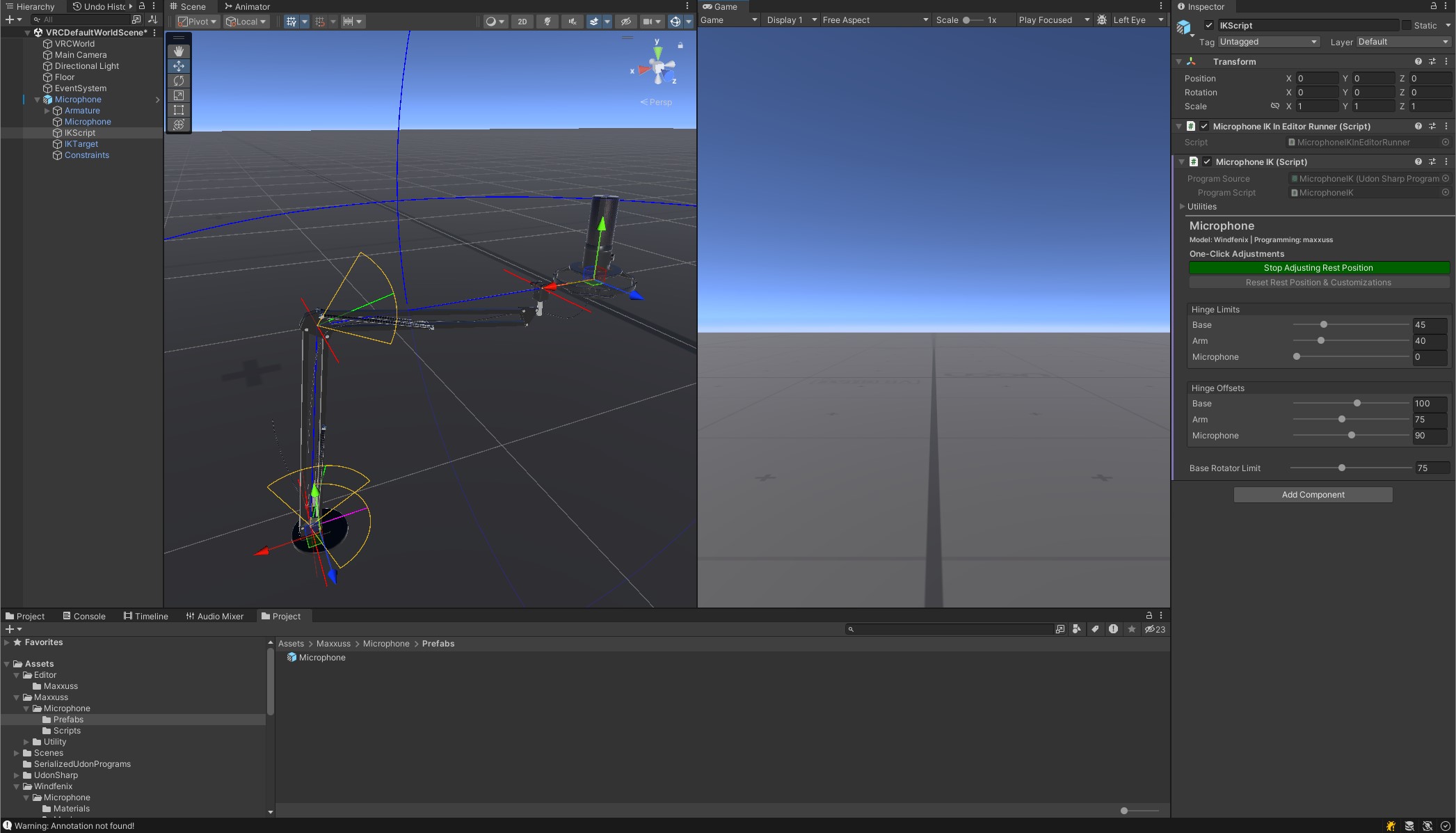
- Under the microphone object in the hierarchy, select the
IKScriptgame object. - Ensure Unity Gizmos are enabled and visible.
- In the
Inspectorunder theMicrophone IK (Script)UdonSharp component, customize the microphone as desired:
-AdjustHinge Limits,Hinge Offsets, andBase Rotator Limit. Modifications to these values will update angle limit and offset visualizations in theSceneview.
- Adjust the rest position of the microphone by first clicking theAdjust Rest Positionbutton, then, move the microphone using the positional handle that appears at the tip of the microphone. Please note, this only appears if Gizmos are enabled. Angle adjustments can also be made in this mode. Once adjustments are complete, click the green button labeledStop Adjusting Rest Position.
- To reset adjustments back to defaults, clickReset Rest Position & Customizations. - Under the microphone object in the hierarchy, select the
IKTargetgame object. - In the
Inspectorunder theMicrophone IK Grabber (Script)UdonSharp component, customize the microphone as desired:
- AdjustAuto Drop Radiusto increase or decrease the radius from the center of the microphone where the 'grabber' will automatically drop if outside of the radius. - Under the microphone object in the hierarchy, expand
Armatureand thenWirePoseable. You may transform, rotate, and scaleWirePoseableandWireEndas desired.
Credits
Windfenix - Modeler, Texture, Materials
maxxuss - Programming
Video Credits
maxxuss - Recording, Editing
NOPPERS - Consultant
Bombae - Actor
Dude_Man - Actor
Silver Cylon - Actor
kcor - Actor
License
All code is licensed under MIT.
Models & texture copyright Windfenix -- mesh and textures may be modified but must be credited accordingly.