
Product Description
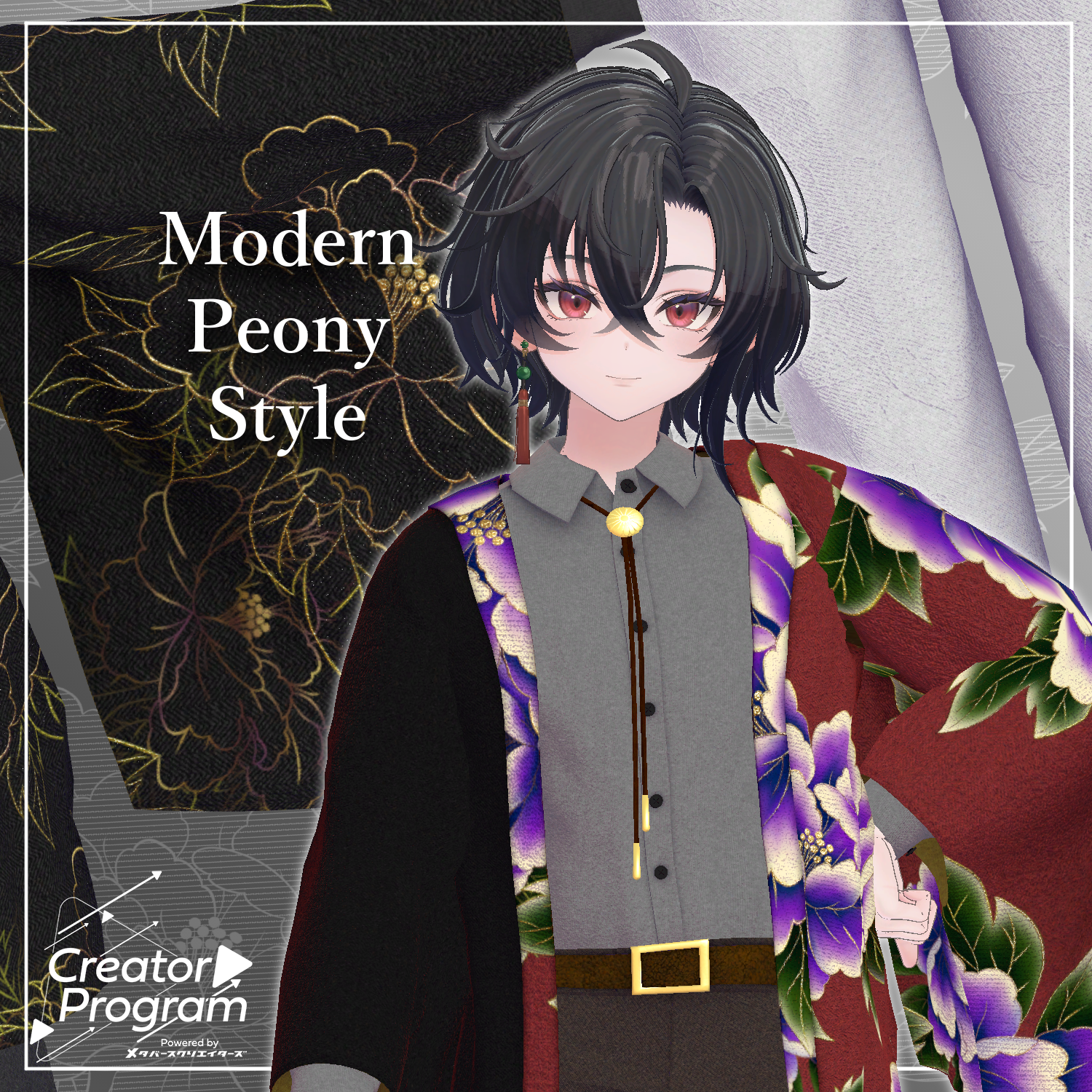
◆ Modern Peony Style ◆
Creator: Voddolesu
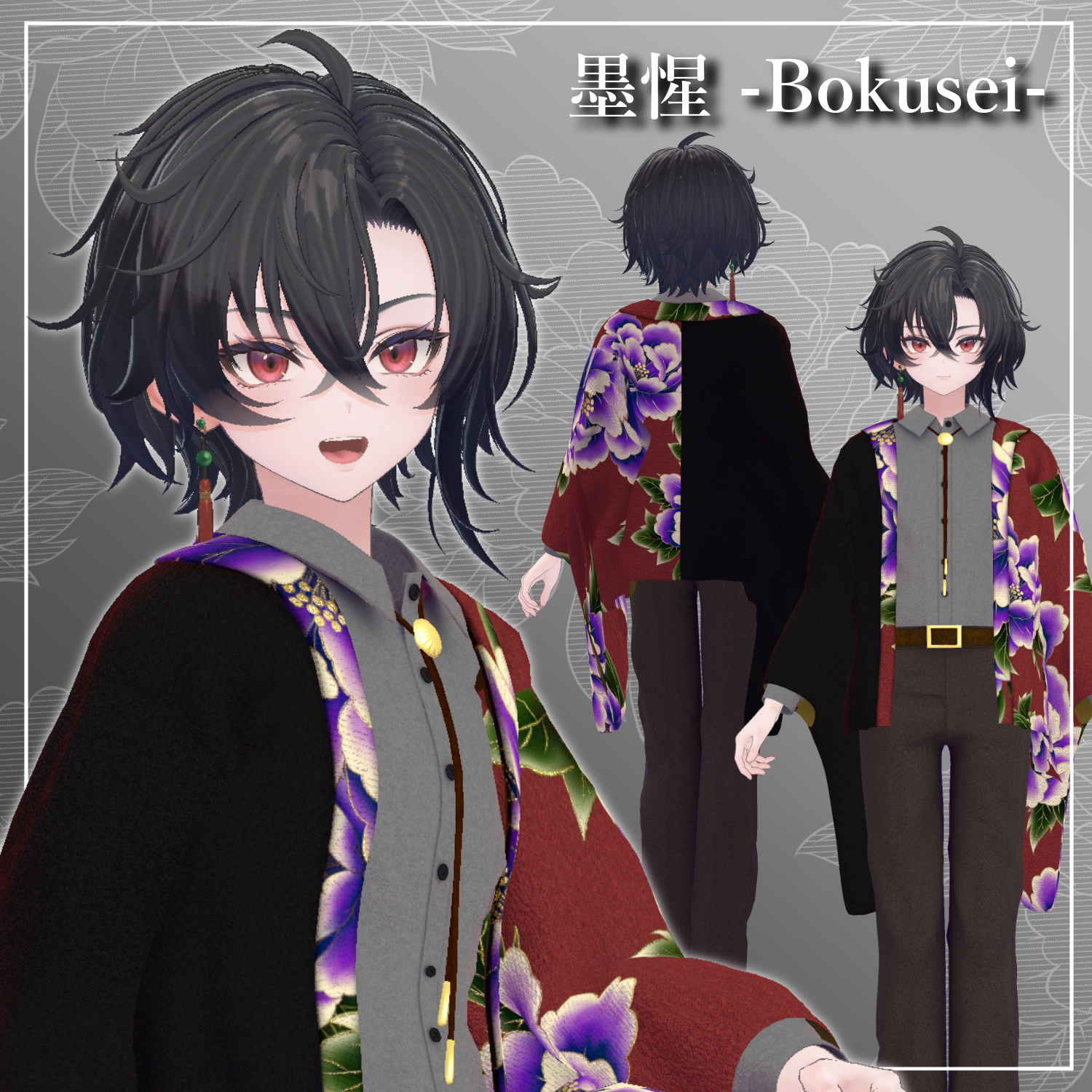
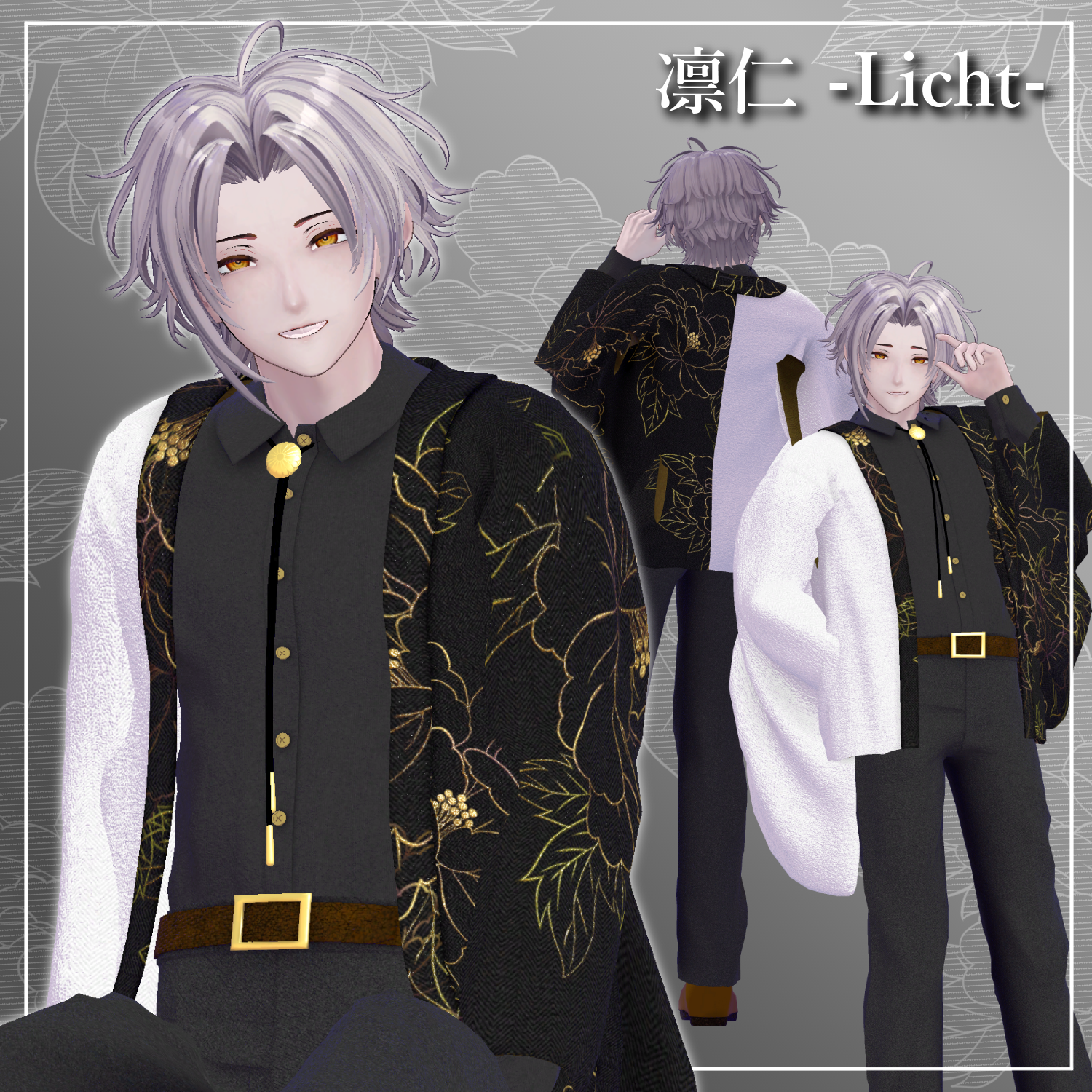
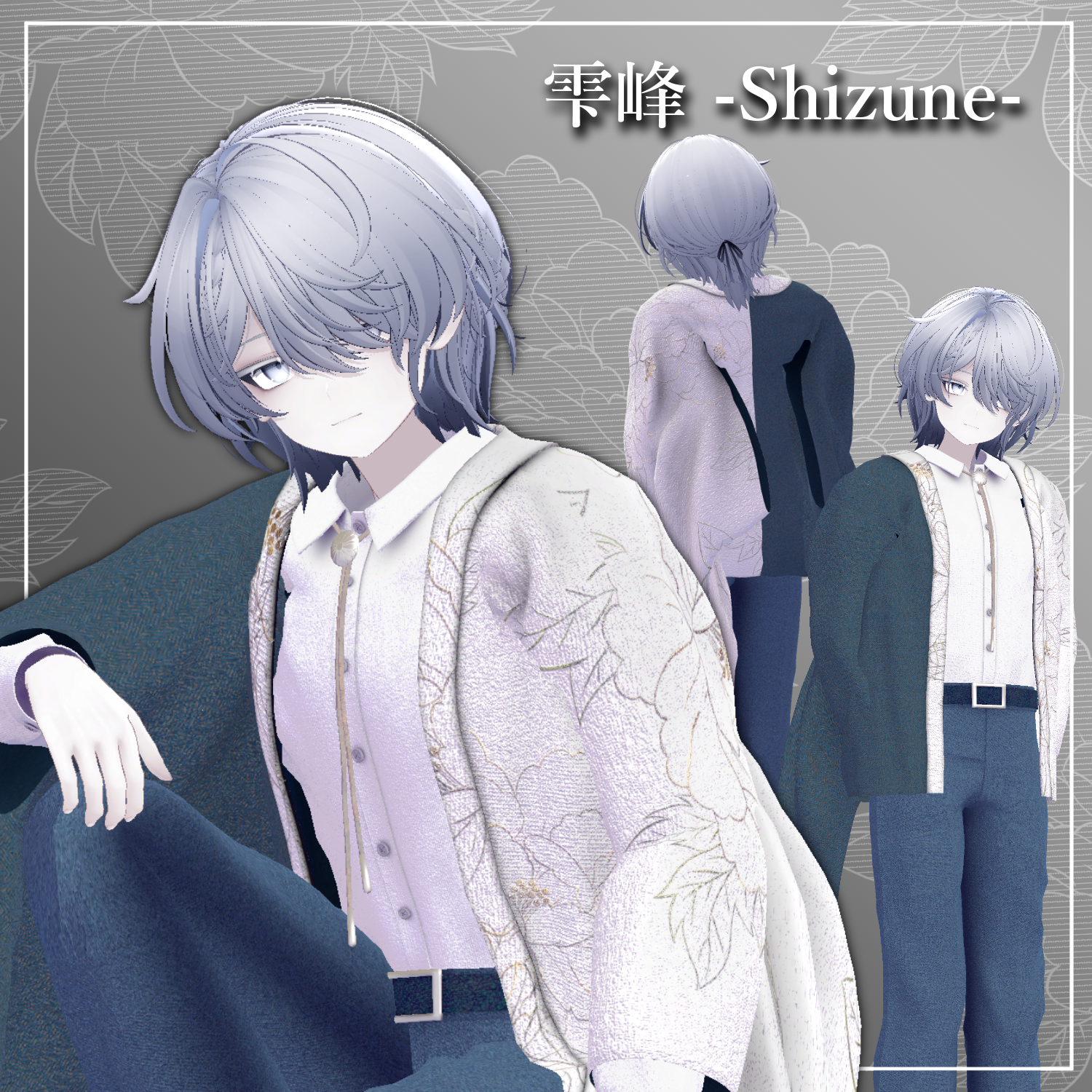
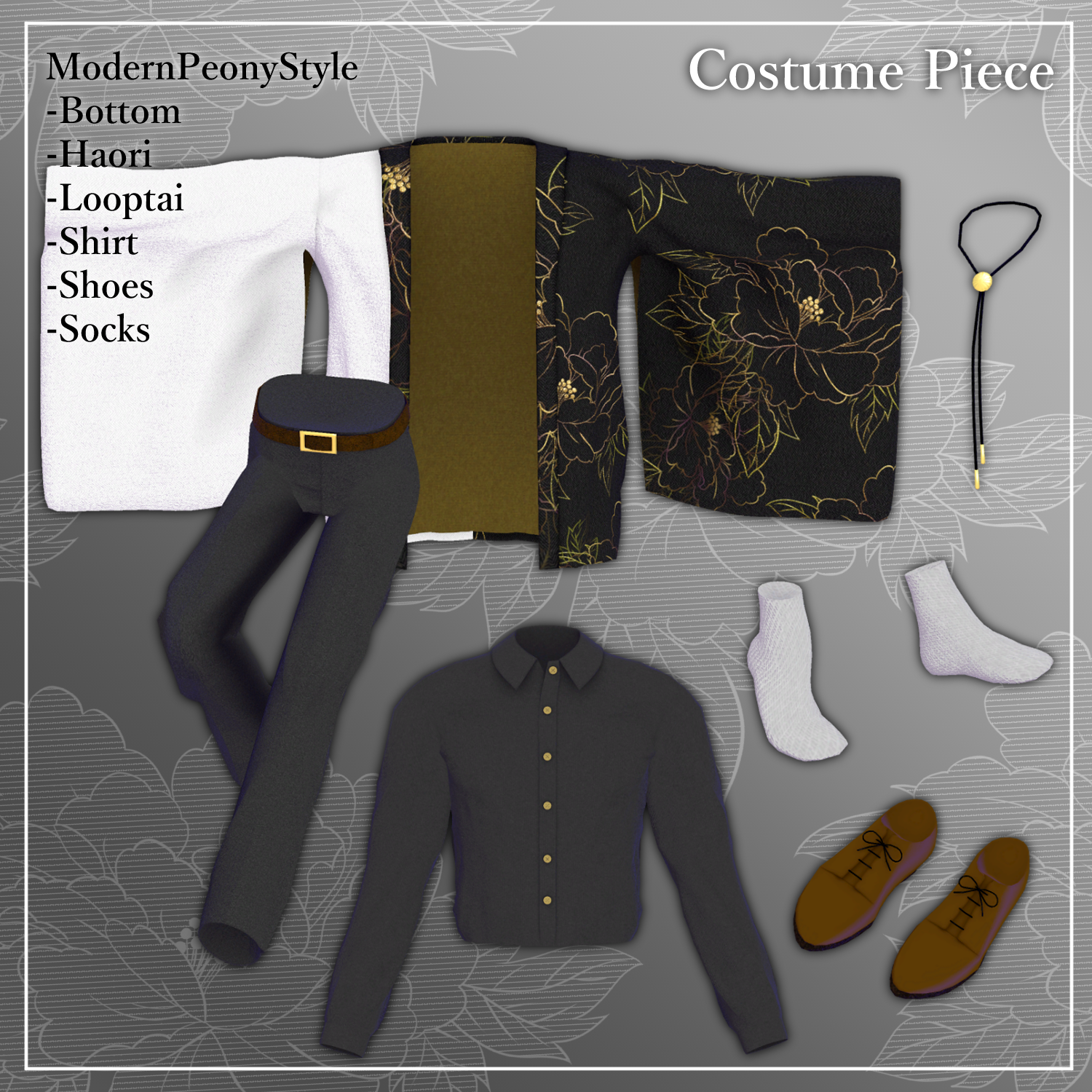
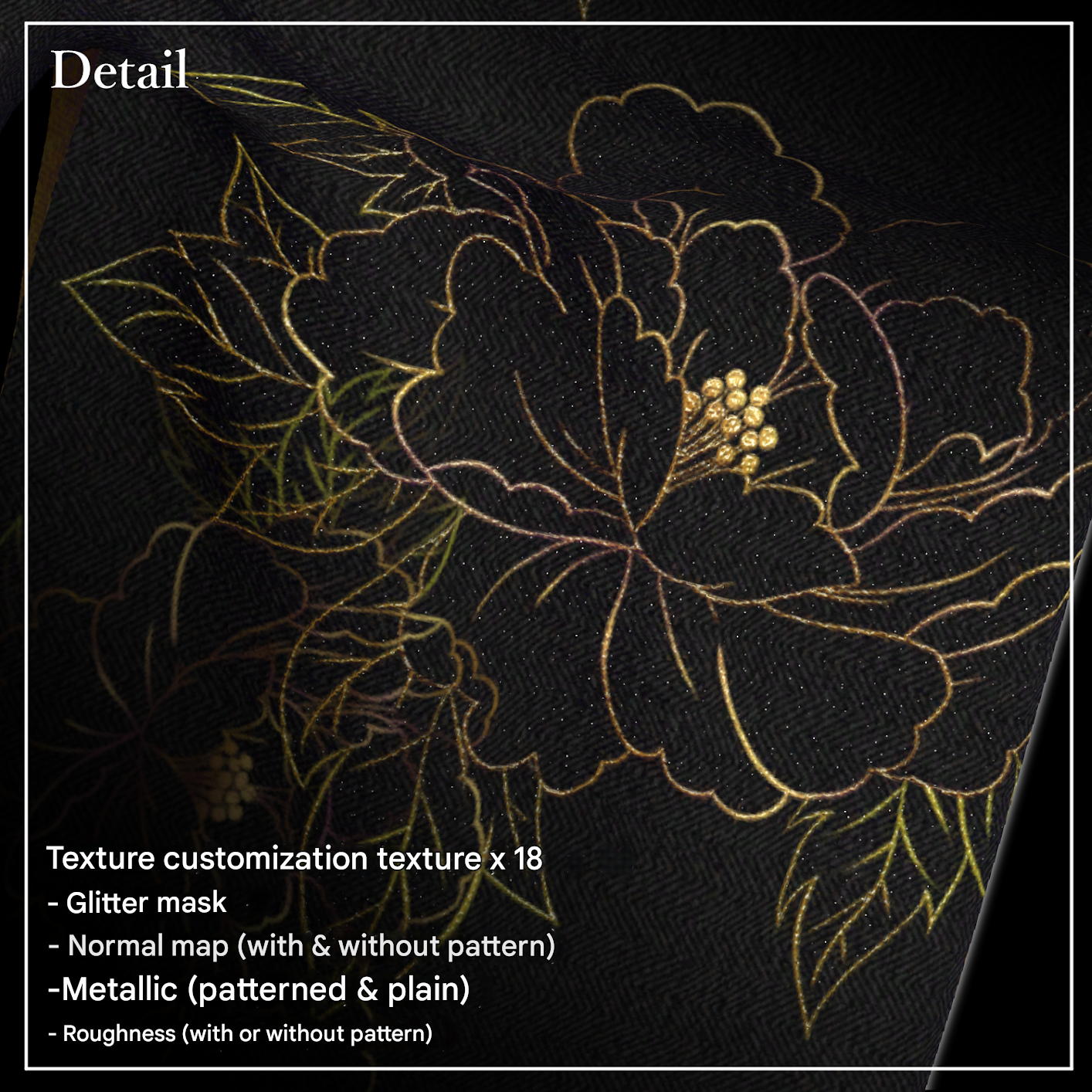
A glamorous haori set richly adorned with peony motifs.
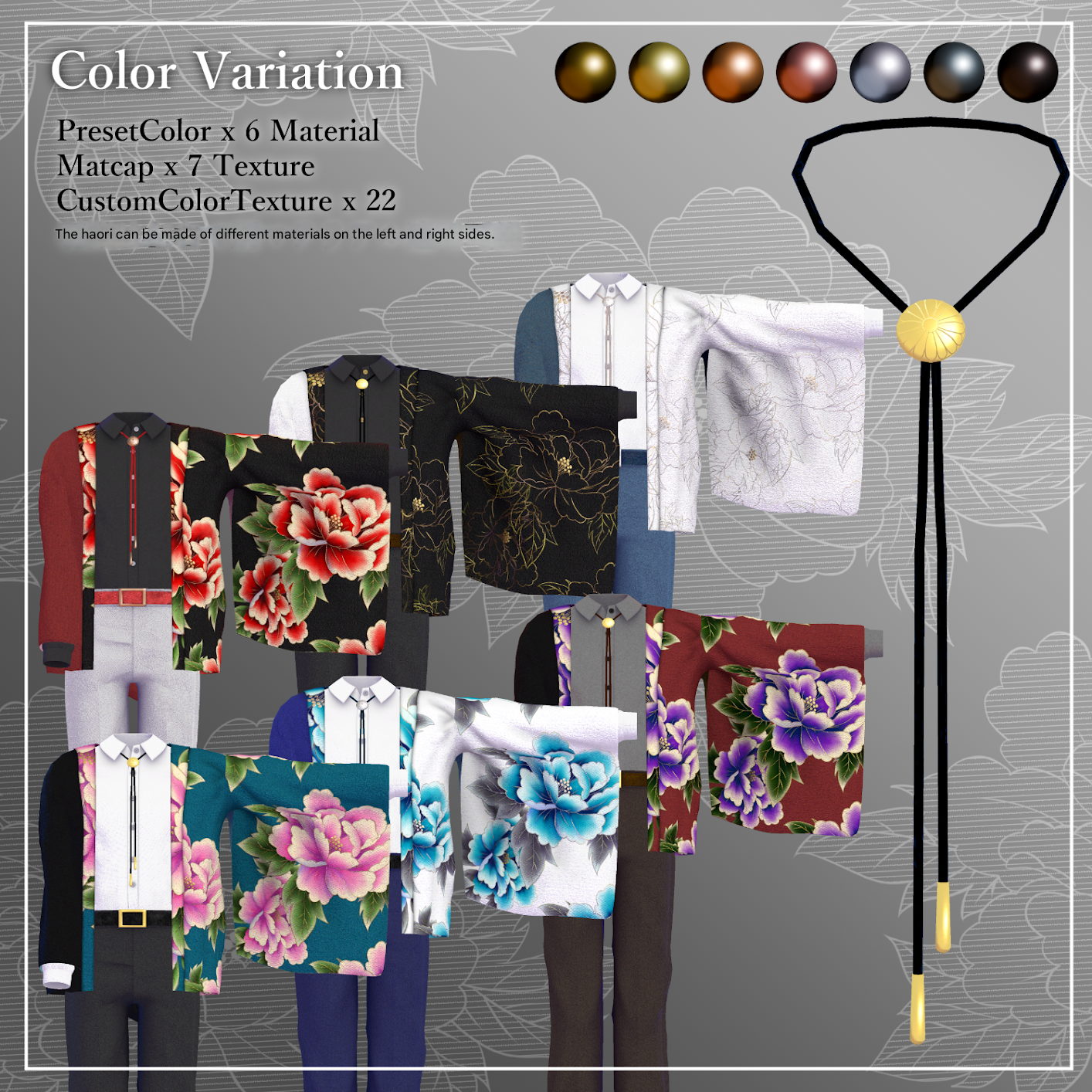
The left and right sides use separate materials, allowing you to freely mix and match and enjoy creating a one-of-a-kind outfit.
※ This product is a clothing model for VRChat avatars. The avatar itself is not included.
※ Due to the nature of digital downloads, returns and refunds are not available. Please review the product description and Terms of Use before purchasing.
◆ Item Overview
● Included Files
ModernPeonyStyle_〇〇.Unitypackage
FBX files
Texture files
ReadMe.txt (this document)
Shader Used
liltoon
https://lilxyzw.booth.pm/items/3087170
Required Assets
Modular Avatar
https://modular-avatar.nadena.dev/ja/docs/intro
● Model Data
△ Total polygon count: 31,736
Haori: 9,272 polygons
Bottom: 6,262 polygons
Loop Tie: 1,200 polygons
Socks: 1,124 polygons
Shirt: 10,686 polygons
Shoes: 3,192 polygons
Mesh count: 6
Material count: 3
PhysBone components: 17
Import Folder
Assets > MetaverseCreators_CP > Rhombus > ModernPeonyStyle
◆ Compatible Avatars
Original 3D Model “Shizune”
#Shizune3D / AC3 jinxxy.com/MetaCre/5OwjR
Original 3D Model “Licht”
#Licht3D / AC1
※ When equipping the outfit, shapekeys that hide the avatar’s base body (turning it into a simplified “stick form”) will be applied.
◆ Installation Guide
Set up the latest VRC SDK using VCC.
Install required assets (liltoon, Modular Avatar) via VCC.
Import the latest package for your chosen avatar.
Import this product’s package.
Drag your avatar (and any outfit/editable prefab) into the Scene Hierarchy.
Hide or set to Editor Only any unnecessary avatar clothing (default outfits, underwear, etc.).
Drag [OutfitName]_[AvatarName].Prefab directly under the avatar.
Upload the avatar using the VRC SDK.
◆ Notes on MA Shape Changer
This outfit includes Modular Avatar’s MA Shape Changer.
When placed under the avatar, shapekeys automatically activate to slim or hide mesh regions that would otherwise clip with the clothing.
If you do not need this feature, you may remove the component.
PlusHead avatars:
Some avatars use different mesh names (this outfit assumes PlusHead).
If the Shape Changer does not function correctly, rename the mesh or adjust shapekeys manually.
If any part of the avatar becomes unintentionally thin after fitting the outfit, reset the affected shapekey to 0 and confirm the base body’s appearance.
◆ Changing Colors
Preset color-variation materials are available in:
Common > Material
In addition to presets, custom textures are included so you can freely mix and match colors.
Custom materials can be found in:
Common > Material > CustomColor
Customizable Parts
Haori: Left panel / Right panel / Lining
Shirt
Bottom: Belt / Slacks / Socks / Shoes
◆ Terms of Use
https://drive.google.com/drive/folders/1qRMXoIxM1ZgacBPfwOigQRtXP1vCbNMn?usp=sharing
※ Please also follow the Terms of Use for the base avatar used.
◆ Production Environment
Modeling: Blender Ver. 4.5.5
Textures: Substance 3D Painter 2024
Setup: Unity Ver. 2022.3.22f1
VRChat SDK – Avatars Ver. 3.9.0 (VCC)
liltoon 2.3.2
ModularAvatar 1.14.3