
Product Description
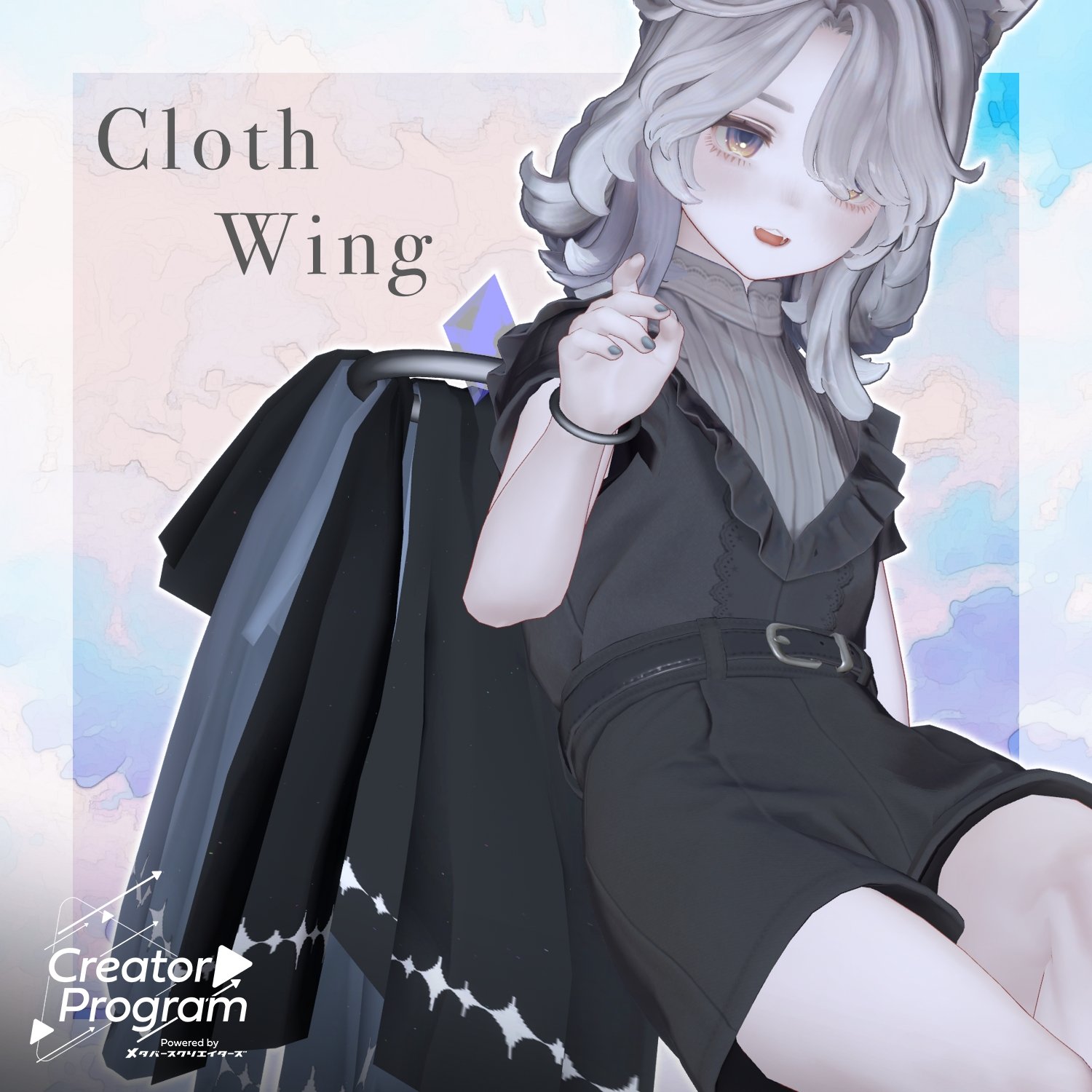
◆ Cloth Wing ◆
Creator: kaitakuJP
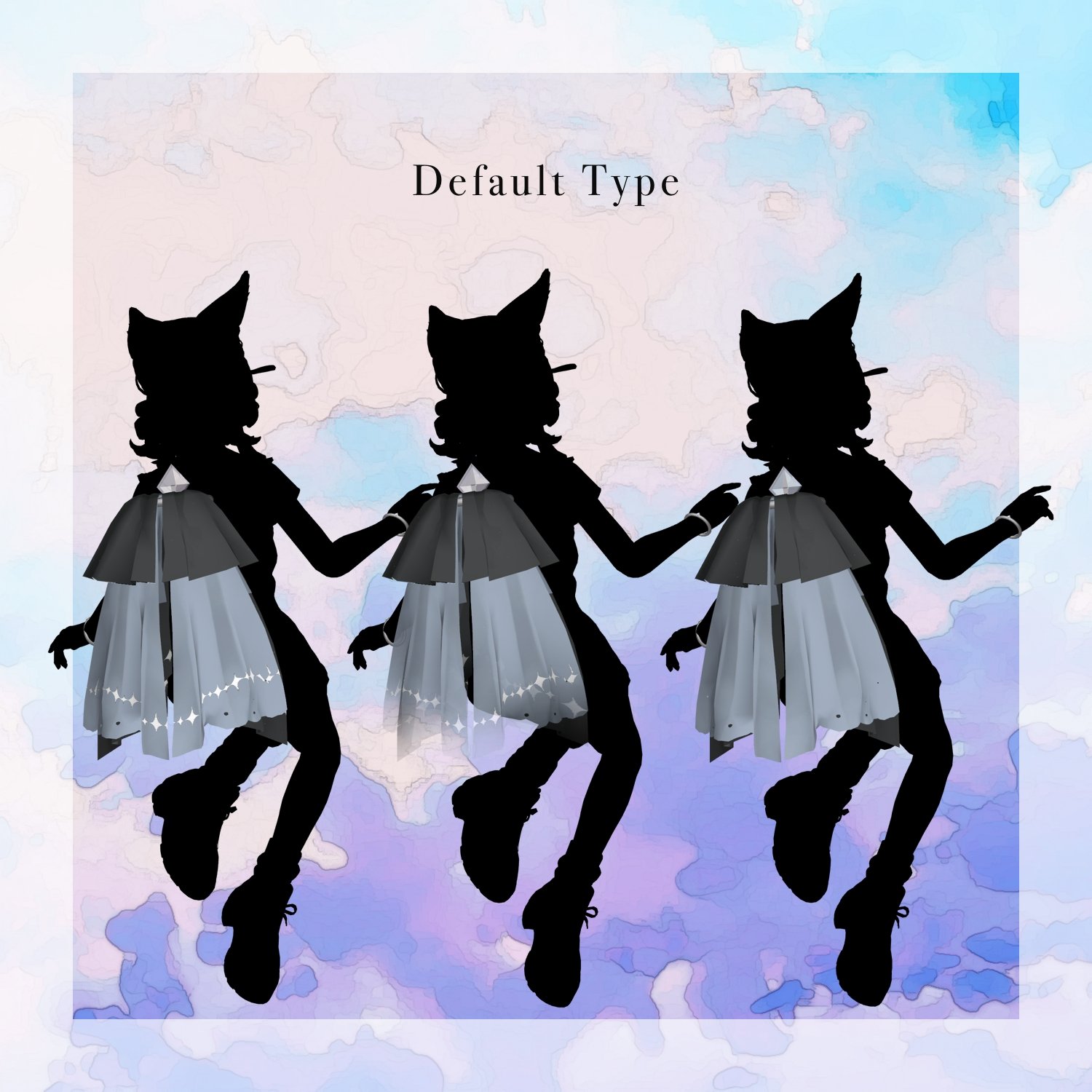
A set consisting of flowing cloth wings and bracelets.
Please Note:
Due to the nature of digital downloads, returns and refunds are not possible. Please confirm the description and Terms of Use before purchasing.
◆ Item Overview
Contents:
PackageName.Unitypackage
FBX
Textures (PNG files)
psd files for editing
ReadMe.txt (Main text)
Required Shader:
liltoon: https://lilxyzw.booth.pm/items/3087170
Required Assets:
Modular Avatar: https://modular-avatar.nadena.dev/ja/docs/intro
Model Data:
Polygon Count: 1,064 total
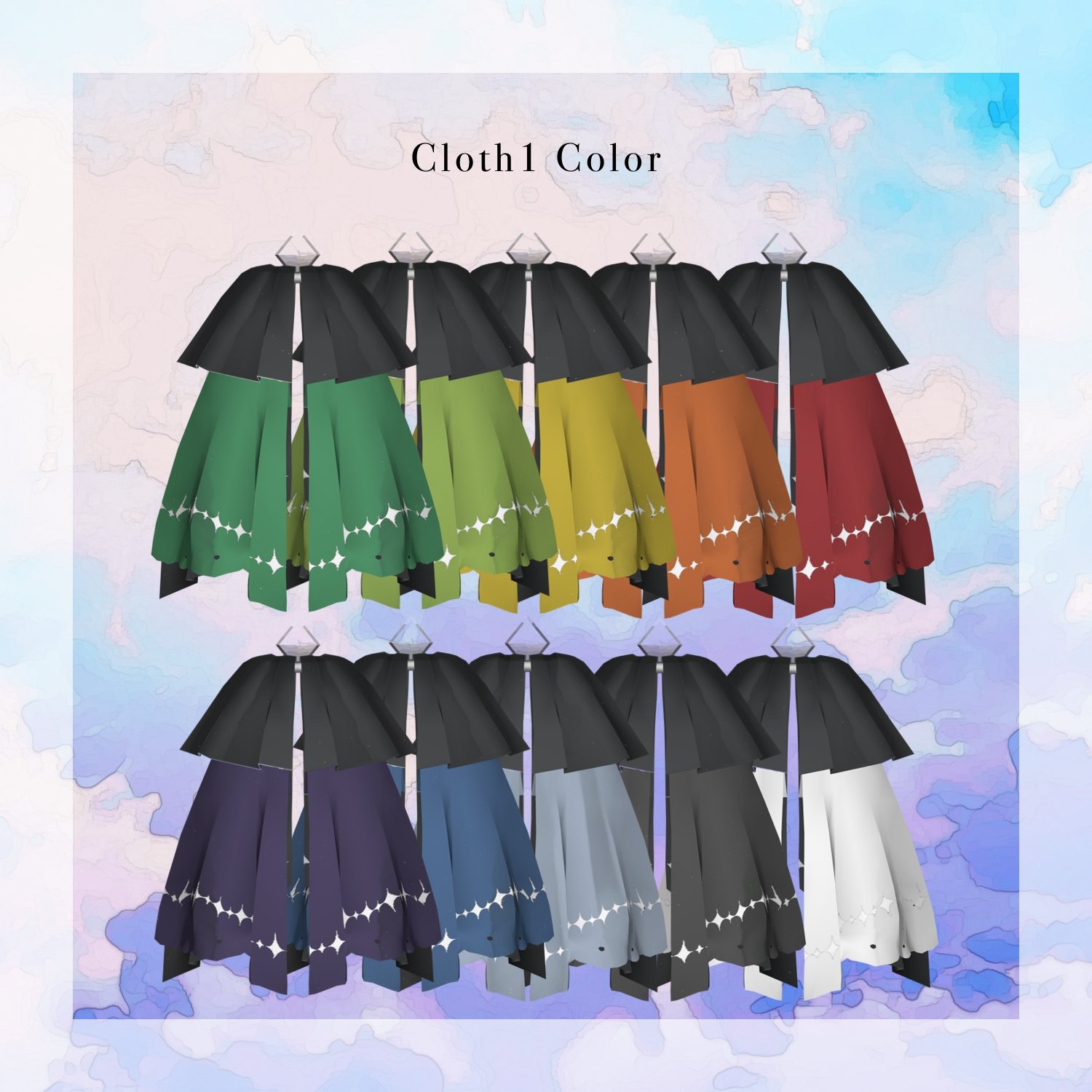
Cloth1: 180
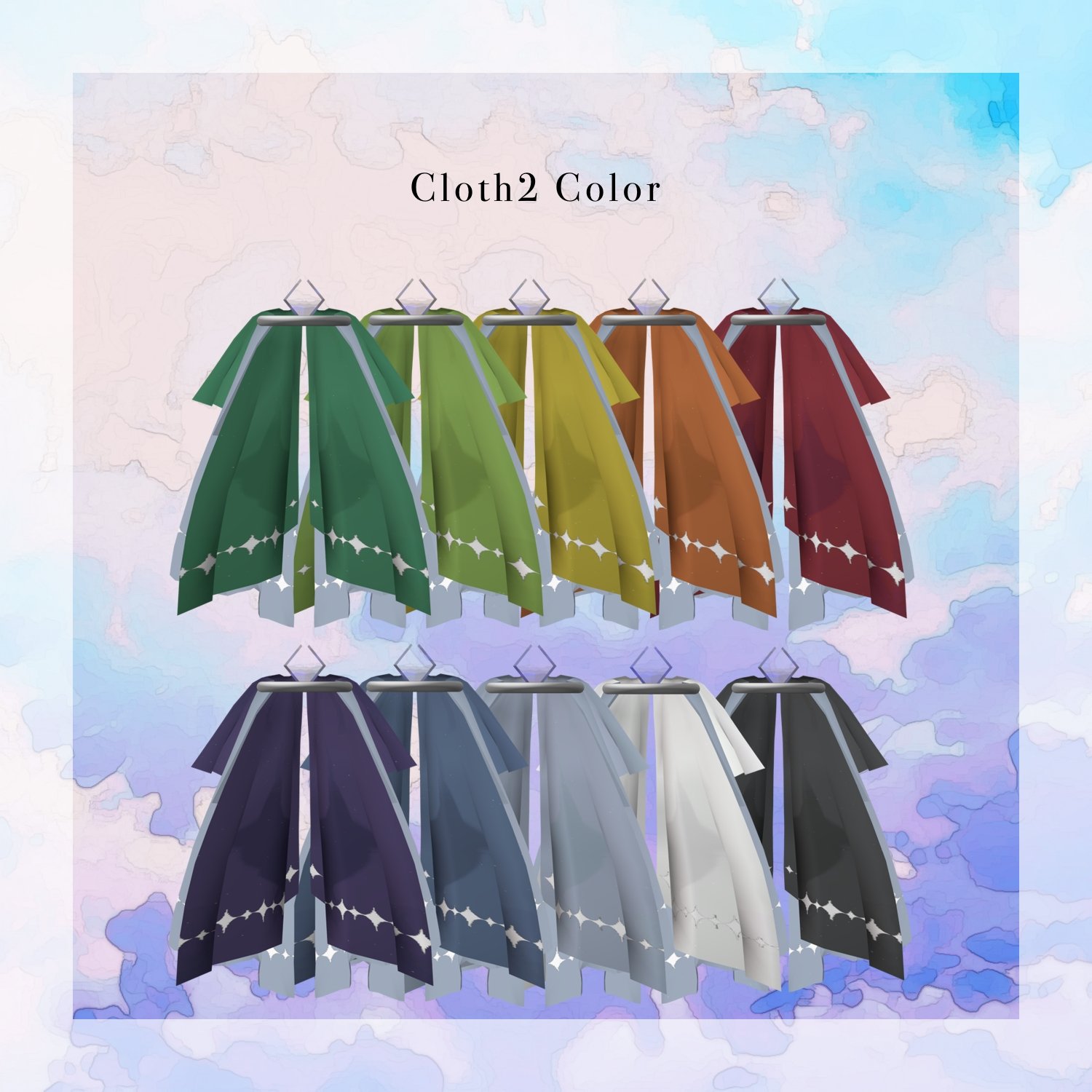
Cloth2: 354
Jewelry: 18
Ring: 512
Mesh Count: 4
Material Count: 4
PB (PhysBone) Components: 13
PB Colliders: 1
Import Path: Assets > MetaverseCreators_CP > kaitakuJP > Beast Ear Hair
◆ Installation Steps
Set up the latest VRChat SDK via VCC.
Install required assets (liltoon, Modular Avatar) via VCC.
Import this product's package.
Drag and drop your avatar into the Scene Hierarchy.
Hide or set "Editor Only" for any unnecessary parts of the avatar (default outfits, etc.).
Drag and drop Cloth Wing_T.Prefab or Cloth Wing_A.Prefab directly onto your avatar.
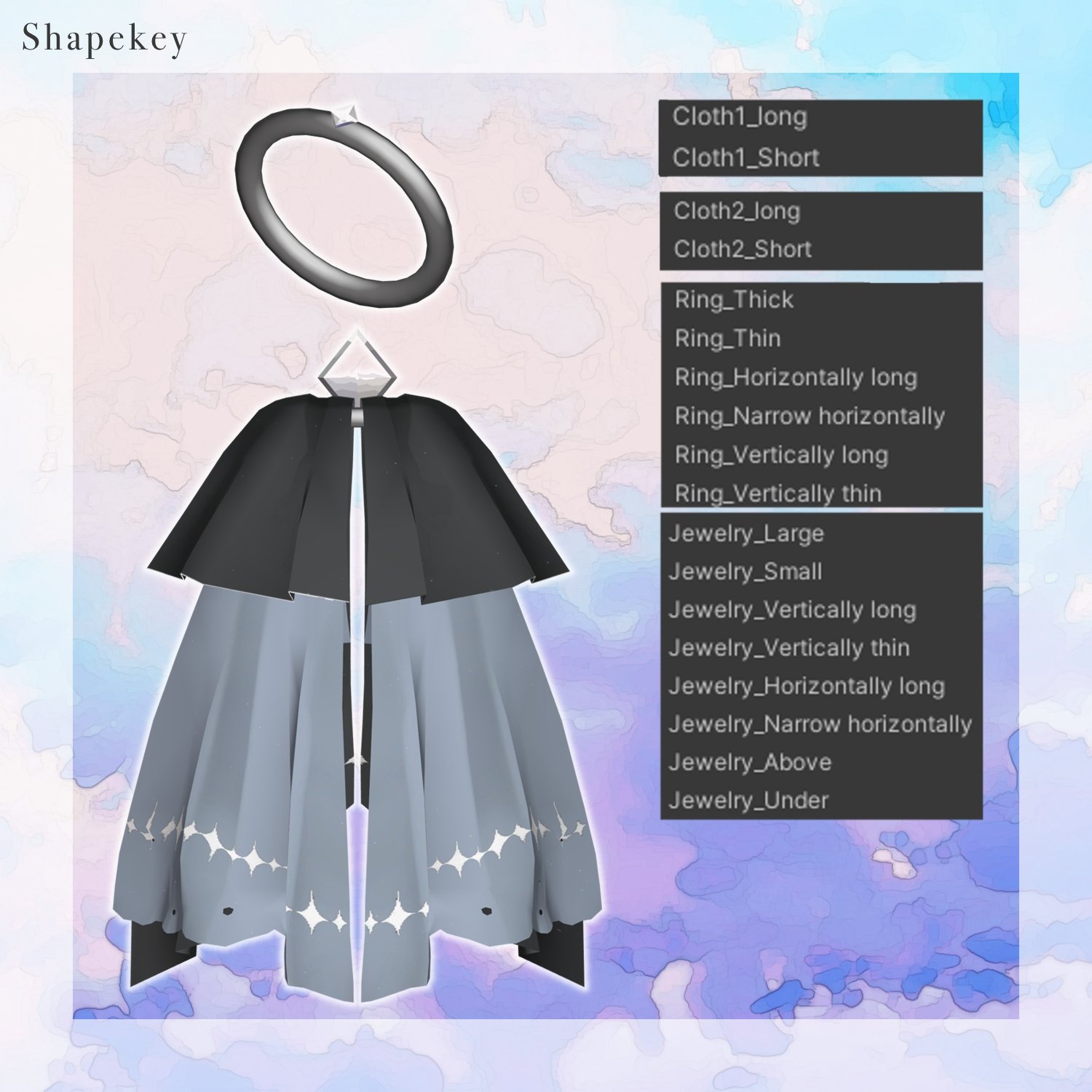
Within the Scene, navigate to: Cloth Wing_X > Cloth Wing Menu > Cloth Wing and Bracelet > Ring_X ON/OFF > Ring_X. Adjust these Prefabs using Shape Keys, Move, Scale, and Rotate tools to place them in your desired location.
Upload the avatar via the VRChat SDK.
◆ Gimmick Overview
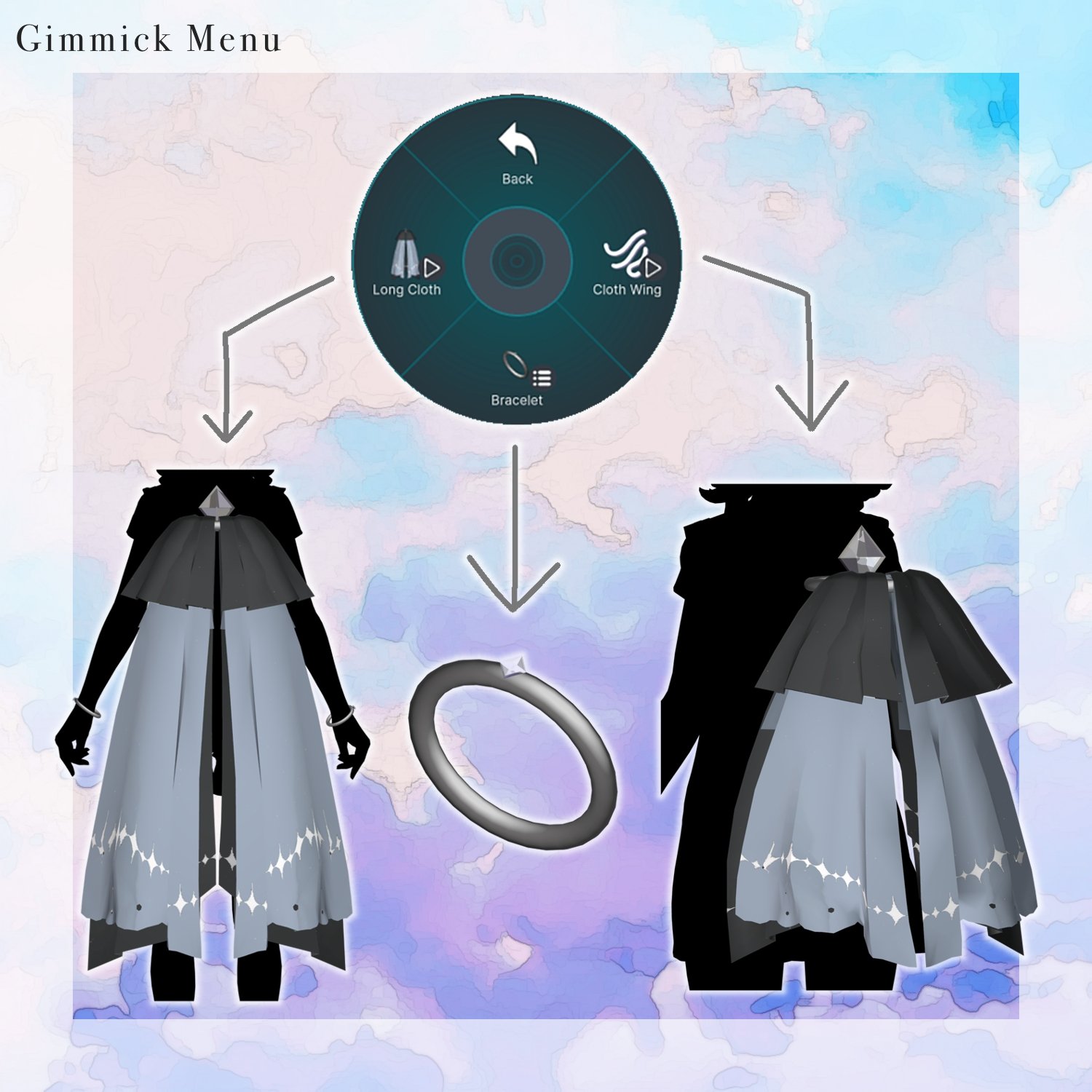
Gimmicks can be found in the Expression Menu under Cloth Wing Menu:
Cloth Wing - Toggles the cloth swaying animation.
Bracelet - Toggles the left and right bracelets on/off.
Long Cloth - Increases the length of the cloth.
◆ Color Customization
Cloth: Replace the materials using the color variations found in Common > Material > Cloth1/2.
Jewelry & Ring: Change the color via the "Main Color" setting in the material.
Textures: Use the Default_Gradation Transparent and Default_DiaMark textures in the Main Color slot.
Editing: Use the included .psd or .clip files to customize the colors to your liking.
◆ Terms of Use
https://drive.google.com/drive/folders/1qRMXoIxM1ZgacBPfwOigQRtXP1vCbNMn?usp=sharing Please ensure you also follow the terms of use for the base avatar you are using.
◆ Technical Details & Credits
Modeling: Blender Ver 5.0
Textures: Firealpaca
Setup: Unity 2022.3.22f1 / VRC SDK 3.8.2 / liltoon 2.3.1 / ModularAvatar 1.13.4
Creator: kaitakuJP
X (Twitter): https://x.com/kaitaku_VRC
BOOTH: https://kaitaku98.booth.pm/
Support Discord: https://discord.gg/bmw3PWE37M