
Product Description
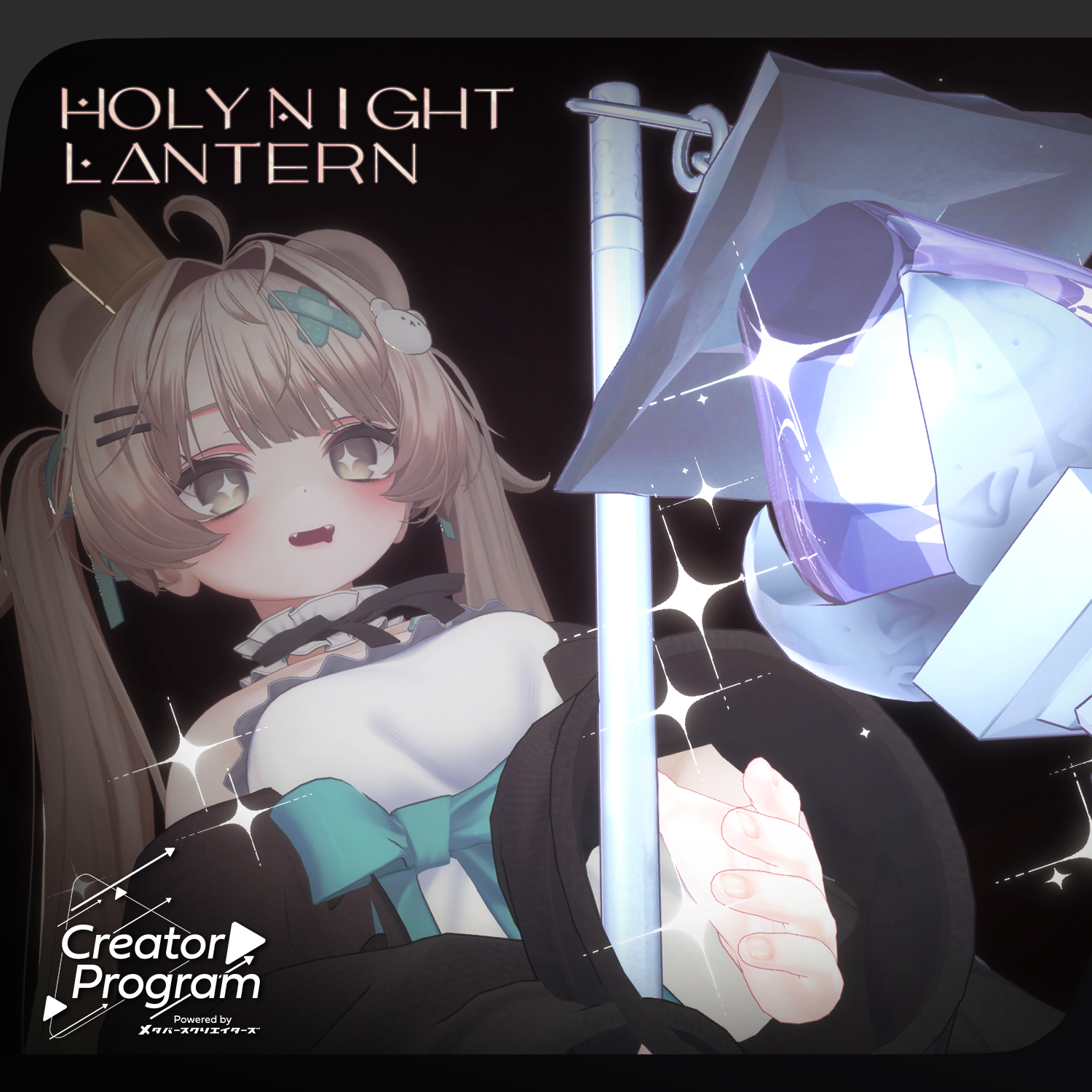
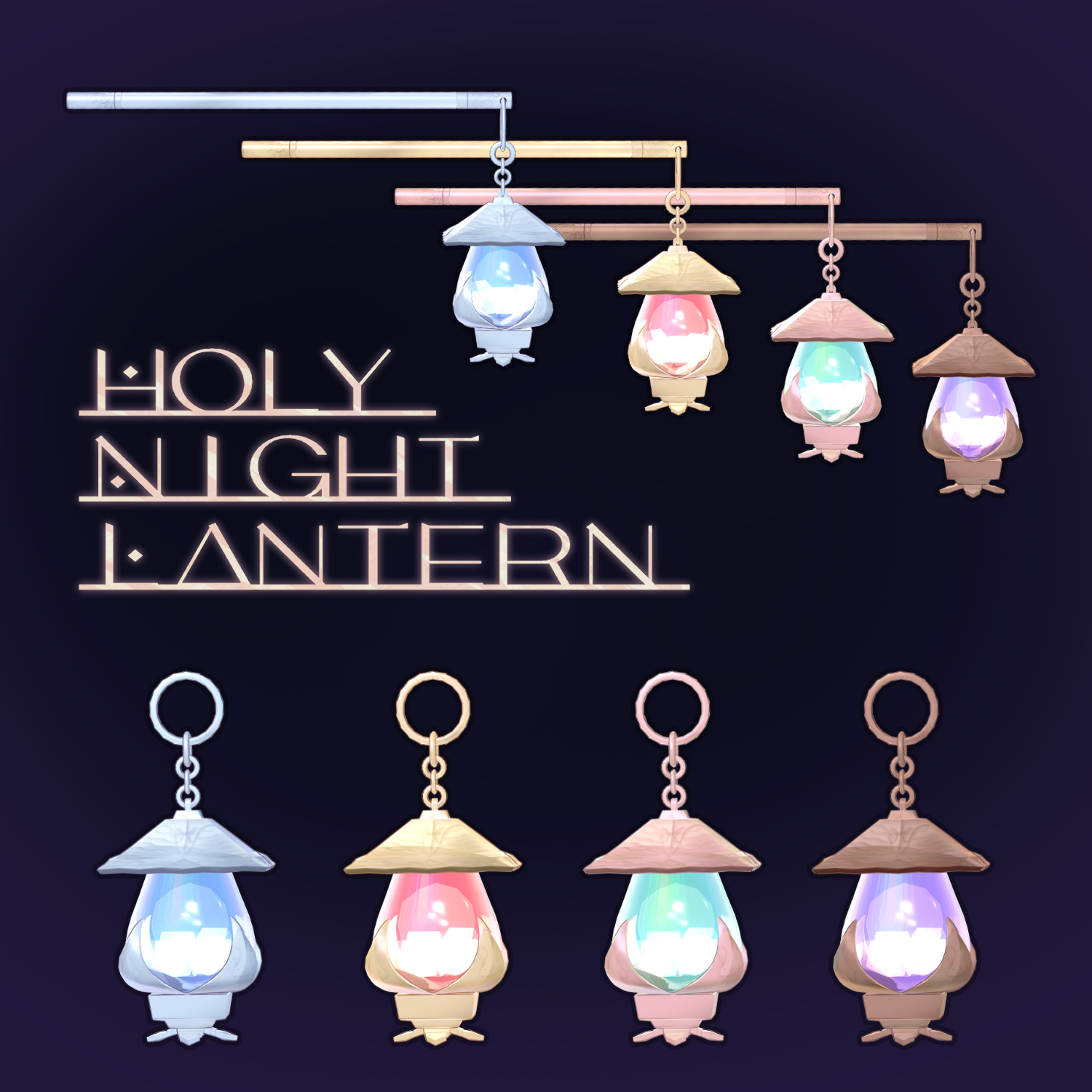
◆ Holy Night Lantern ◆
Creator: Atelier umorunba (うもるんば工房)
“The light of the holy night drops stars. In exchange for warmth.”
Please Note:
Due to the nature of digital downloads, returns and refunds are not possible. Please confirm the description and Terms of Use before purchasing.
This product is intended for use with VR devices; it is not designed for standalone desktop use.
◆ Item Overview
Contents:
HolyNightLanternEX.Unitypackage
PSD file
Blend file (Created in ver 4.3.1)
ReadMe.txt (Main text)
Required Shader:
liltoon: https://lilxyzw.booth.pm/items/3087170
Required Assets:
Modular Avatar: https://modular-avatar.nadena.dev/ja/docs/intro
Model Data:
Polygon Count: 6,052 total
Mesh Count: 3,304
Material Count: 4
PB (PhysBone) Components: 1
Import Path: Assets > MetaverseCreators_CP > Atelier umorunba > Holy Night Lantern
◆ Installation Steps
Set up the latest VRChat SDK via VCC.
Install required assets (liltoon, Modular Avatar) via VCC.
Import this product's package.
Drag and drop your avatar into the Scene Hierarchy.
Hide or set "Editor Only" for any unnecessary outfits.
Drag and drop X_XX_X_HNL.Prefab directly onto your avatar.
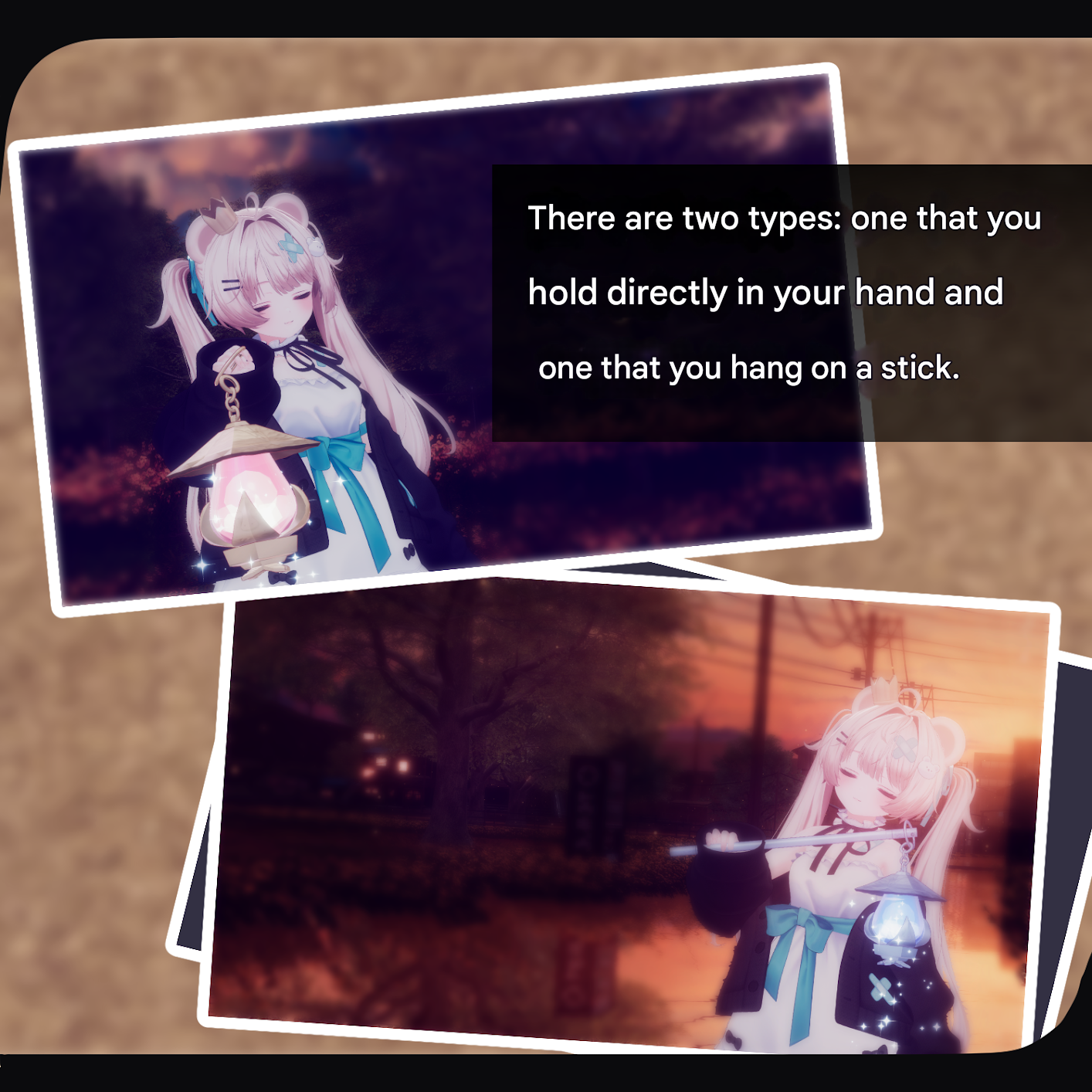
For "Hand-Held" or "Hanging on a Stick" types:
In the Scene, select the X_XX_X_HNL > KokoWoUgokasu prefab. Use the Move, Scale, and Rotate tools to place it in your desired location.
For "Attachment" (Bone Proxy) types:
In the Scene, find X_XX_ex_HNL > hand-KokoWoUgokasu > HNLbonesan and X_XX_ex_HNL > KokoWoUgokasu > HNLbonesan.
In the Inspector, locate the MA Bone Proxy component and set the Target to your desired avatar bone.
Use the Move, Scale, and Rotate tools on the hand-KokoWoUgokasu and KokoWoUgokasu prefabs to position them.
Upload your avatar via the VRC SDK.
◆ Gimmick Overview
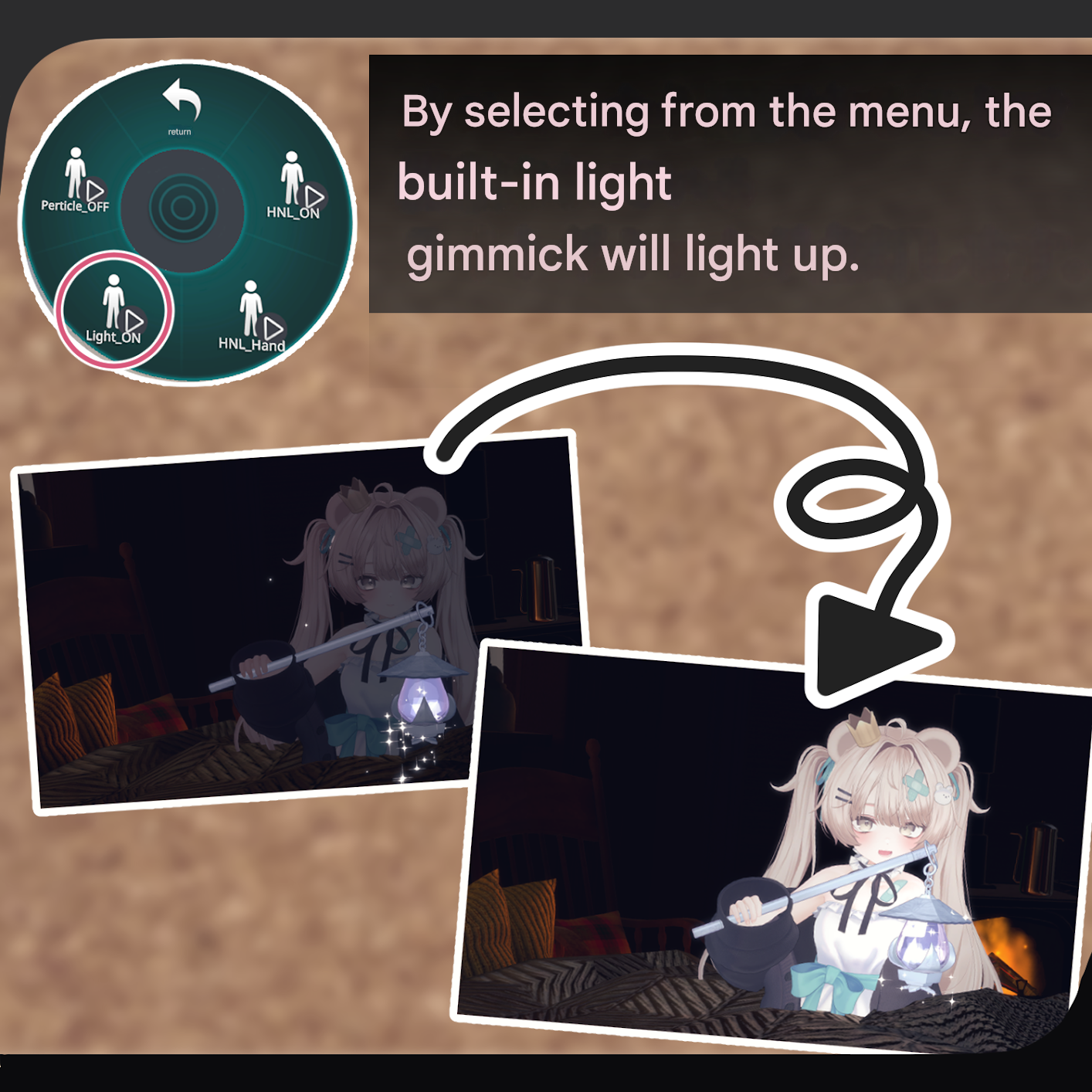
An HNL_Gimmick menu will be added to your Expressions Menu with the following controls:
For Models: X_XX_f_HNL / X_XX_h_HNL
HNL_ON: Toggles lantern visibility.
Light_ON: Toggles the light gimmick.
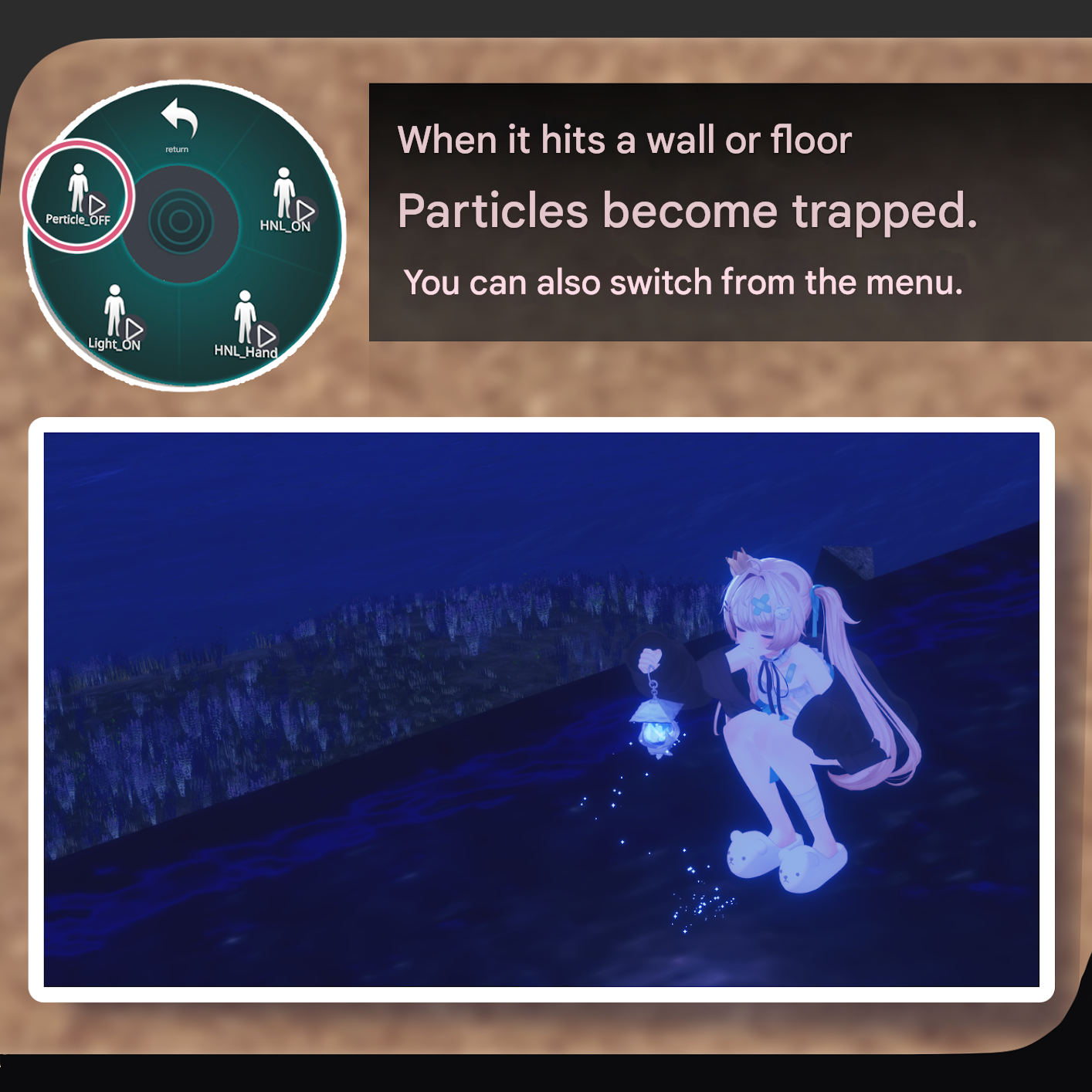
Particle_OFF: Stops particle generation.
For Model: X_XX_ex_HNL
HNL_ON: Toggles lantern visibility.
HNL_Hand: Moves the lantern between designated position A and position B.
Light_ON: Toggles the light gimmick.
Particle_OFF: Stops particle generation.
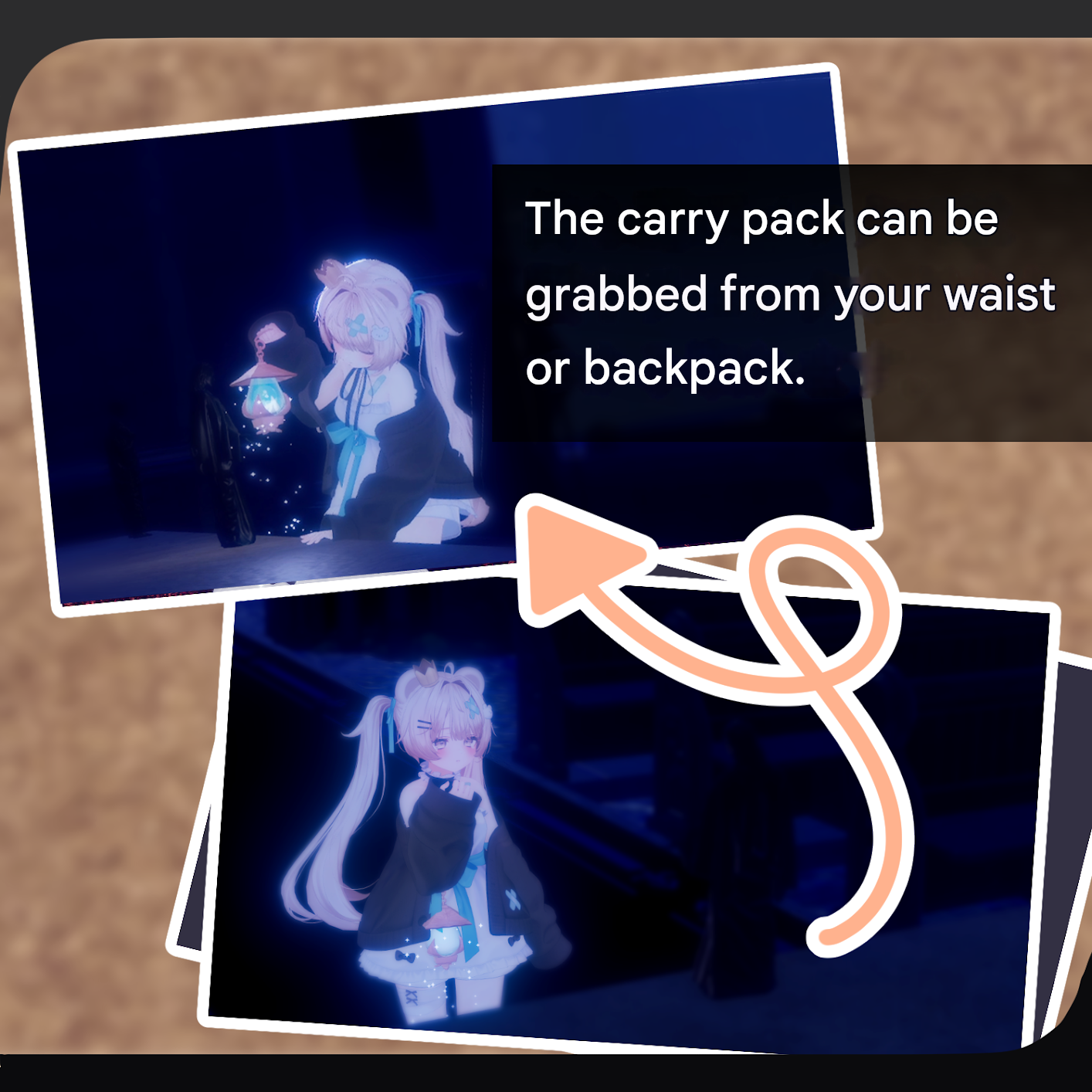
※ Gesture Control: By placing your hand within the Contact zone and performing specific gestures (Fist, Peace, Gun, or Thumbs Up), the lantern will move to position B. Performing any other gesture while in the Contact zone will return it to position A.
◆ Color Customization
Replace materials with the color variations found in the Common > Material folder.
You can also change the color by adjusting the Main Color > Color Correction > Multiply (焼き込み) settings within the material.
◆ Terms of Use
https://drive.google.com/drive/folders/1qRMXoIxM1ZgacBPfwOigQRtXP1vCbNMn?usp=sharing Please ensure you follow the terms of use for your base avatar.
◆ Technical Details & Credits
Modeling: Blender 4.3.1
Textures: CLIP STUDIO PAINT
Setup: Unity 2022.3.22f1 / VRC SDK 3.9.0 / liltoon 2.3.2 / ModularAvatar 1.14.3
Creator: Atelier umorunba (うもるんば工房)
Shop: https://umorunba.booth.pm/
Support Discord: https://discord.gg/bmw3PWE37M